whisper.cpp
NEON & MPS 🆚 CoreML
下载模型(large-v3)
models/download-ggml-model.sh large-v3
NEON & MPS
编译
make clean
make -j
main 帮助 ./main --help usage: ./main [options] file0.wav file1.wav ...
NEON & MPS 🆚 CoreML
下载模型(large-v3)
models/download-ggml-model.sh large-v3
NEON & MPS
编译
make clean
make -j
main 帮助 ./main --help usage: ./main [options] file0.wav file1.wav ...
快速开始
克隆代码
git clone https://github.com/QwenLM/Qwen.git
cd Qwen
创建虚拟环境
python -m venv env
source env/bin/activate
安装依赖
pip install -r requirements.txt
创建大模型链接
mkdir Qwen
ln -s /Users/junjian/HuggingFace/Qwen/Qwen-14B-Chat Qwen/Qwen-14B-Chat
ln -s /Users/junjian/HuggingFace/Qwen/Qwen-1_8B Qwen/Qwen-1_8B
ln -s /Users/junjian/HuggingFace/Qwen/Qwen-1_8B-Chat Qwen/Qwen-1_8B-Chat
ln -s /Users/junjian/HuggingFace/Qwen/Qwen-7B-Chat Qwen/Qwen-7B-Chat
聊天
python cli_demo.py
python web_demo.py
FastChat
克隆代码
git clone https://github.com/lm-sys/FastChat
cd FastChat
创建虚拟环境 python -m venv env source env
克隆代码
git clone https://github.com/ml-explore/mlx-examples
cd mlx-examples
创建虚拟环境
python -m venv env
source env/bin/activate

pip install -r llms/phi2/requirements.txt
pip install -r llms/qwen/requirements.txt
创建大模型链接 mkdir llms/phi2/microsoft ln -s /Users/junjian/HuggingFace/microsoft/phi-2 llms/phi2/microsoft/phi-2 mkdir llms/qwen/Qwen ln -s /Users/junjian/HuggingFace/Qwen/Qwen-14B-Chat llms/qwen/Qwen/Qwen-14B-Chat ln -s /Users/junjian/HuggingFace/Qwen/Qwen-1_8B llms/qwen/Qwen/Qwen-1_8B ln -s /Users/junjian/HuggingFace/Qwen/Qwen-1_8B-Chat llms/qwen/Qwen/Qwen-1_8
在 macOS 安装 GitHub CLI
brew install gh
brew upgrade gh
gh auth login
? What account do you want to log into? GitHub.com
? What is your preferred protocol for Git operations on this host? HTTPS
? Authenticate Git with your GitHub credentials? Yes
? How would you like to authenticate GitHub CLI? Login with a web browser

! First copy your one-time code: EA2E-F864
Press Enter to open github.com in your browser...
✓ Authentication complete.
gh auth status
github.com
  ✓ Logged in to github.com account wang-junjian (keyring)
  - Active account: true
  - Git operations protocol: https
  - Token: gho_************************************
  - Token scopes: 'gist', 'read:org', 'repo', 'workflow'
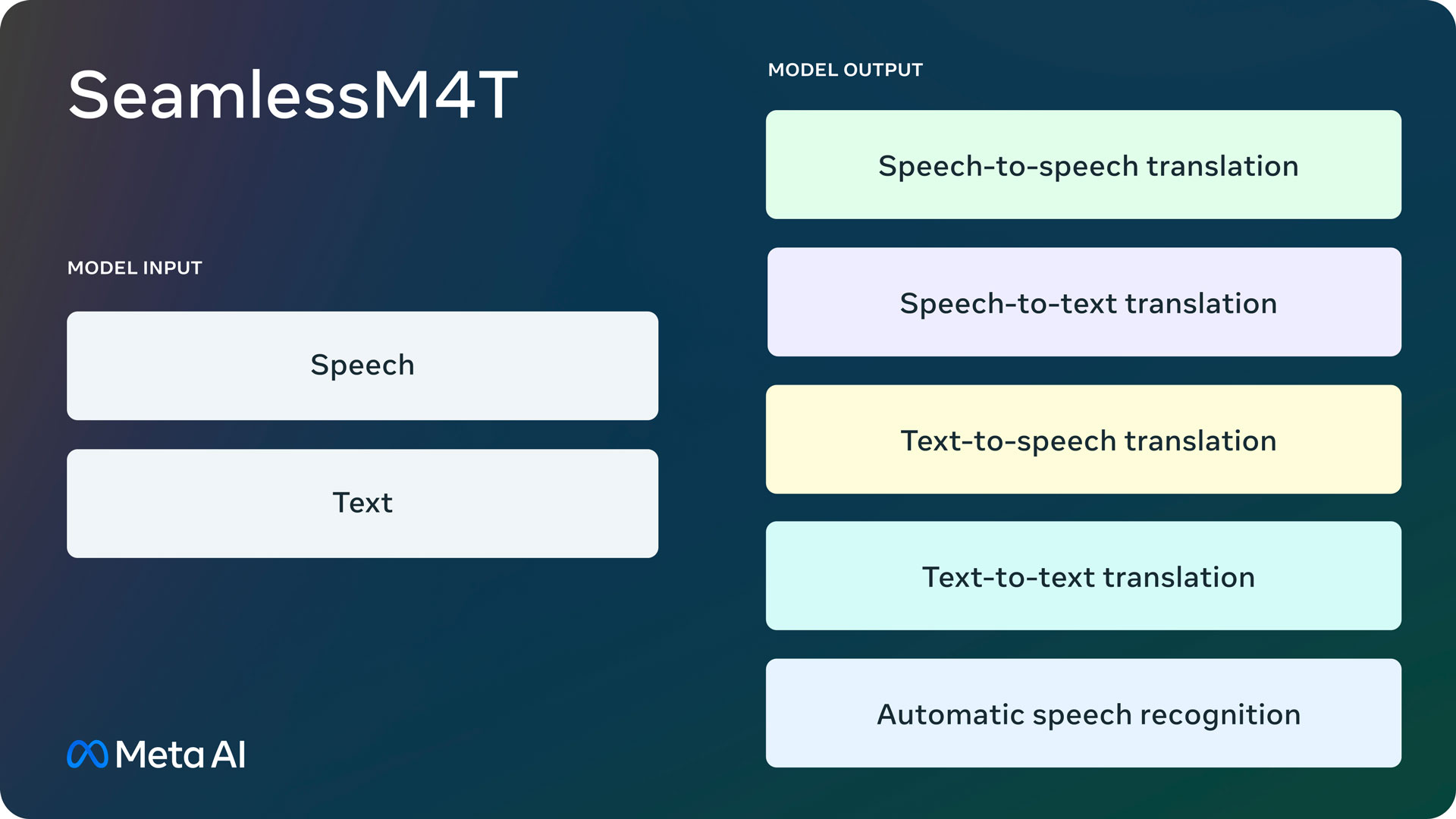
SeamlessM4T 概述
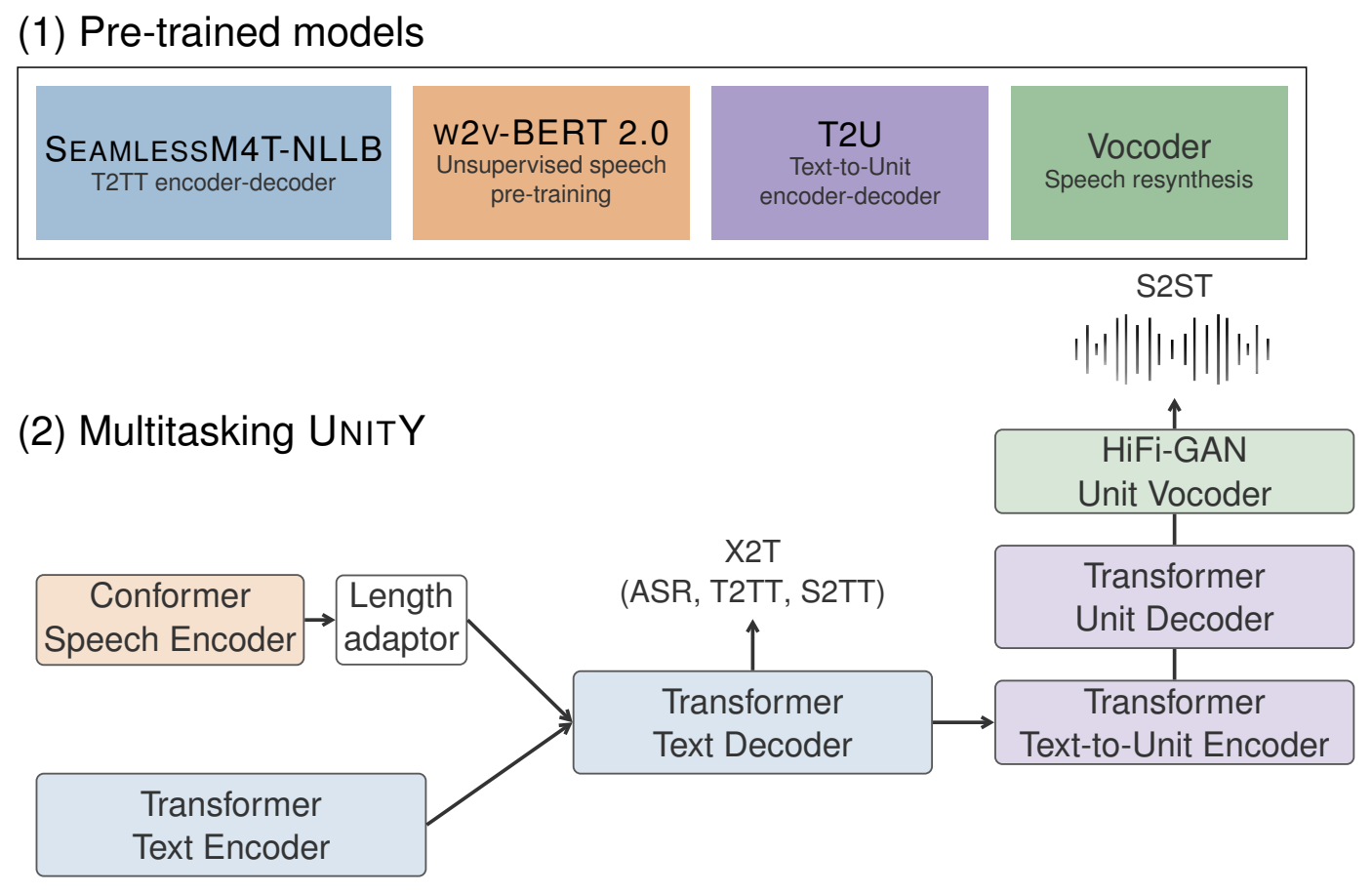
安装 [Seamless Communication][seamless_communication]
克隆仓库 git clone https://github.
安装
brew update
brew install nginx
启动服务
brew services start nginx
Docroot is: /opt/homebrew/var/www

The default port has been set in /opt/homebrew/etc/nginx/nginx.conf to 8080 so that
nginx can run without sudo.

nginx will load all files in /opt/homebrew/etc/nginx/servers/.

To start nginx now and restart at login:
  brew services start nginx
Or, if you don't want/need a background service you can just run:
  /opt/homebrew/opt/nginx/bin/nginx -g daemon\ off\;
/opt/homebrew/etc/nginx/nginx.conf 修改端口号/opt/homebrew/var/www/index.html 修改默认页面停止服务
brew services stop nginx
重启服务 brew services restar
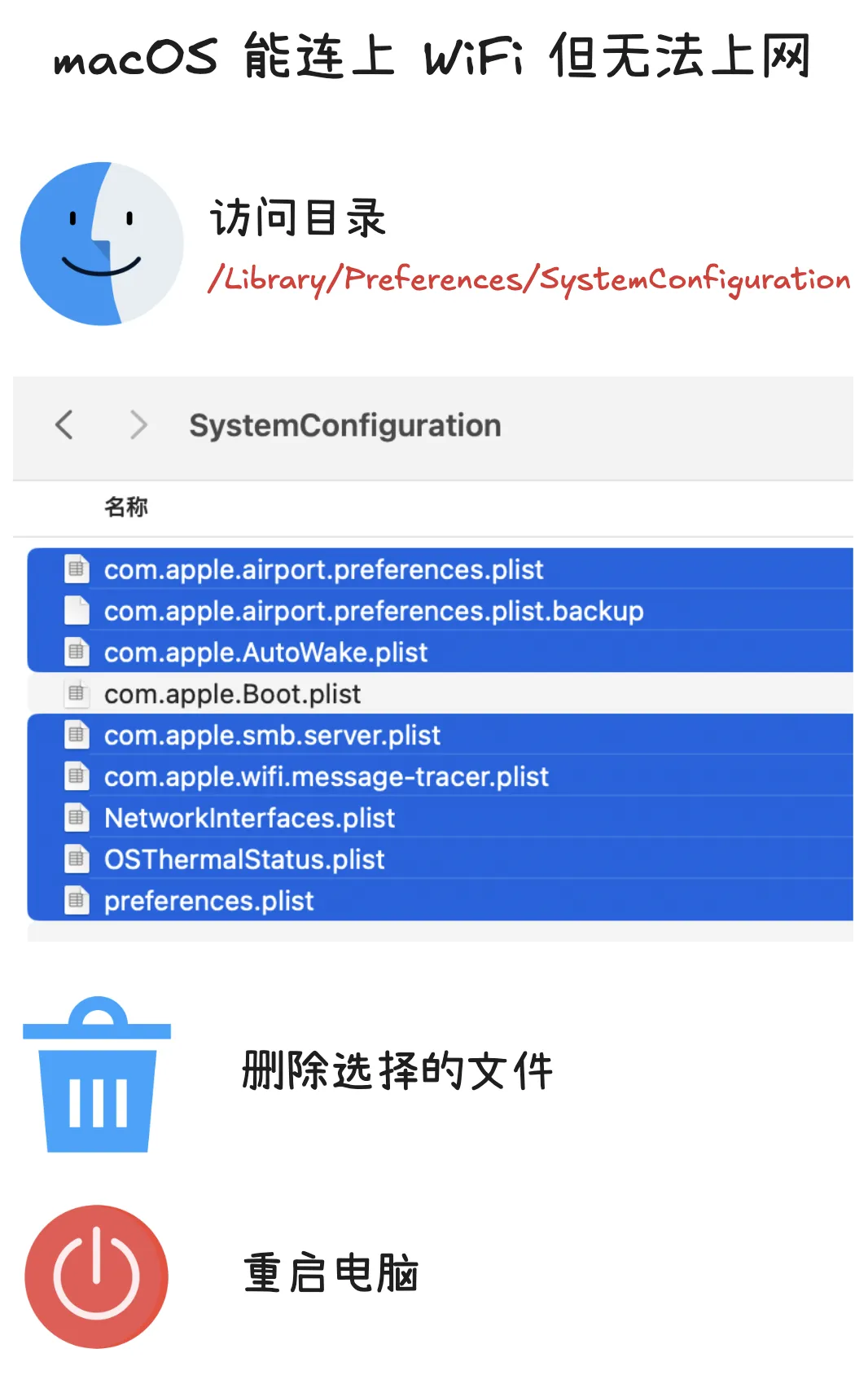
问题描述
我的 MacBook Pro M2 Max 能够连接上 WiFi,但是无法上网,我进行了以下尝试:
解决方案
最后,我在抖音上看到了一个解决方案,我尝试了一下,果然解决了问题。
打开访达,按下Command + Shift + G,输入/Library/Preferences/SystemConfiguration/,除com.apple.Boot.plist文件外,删除其他所有文件,然后重启电脑。
ChatGLM2-6B 是开源中英双语对话模型 ChatGLM-6B 的第二代版本,在保留了初代模型对话流畅、部署门槛较低等众多优秀特性的基础之上,ChatGLM2-6B 引入了如下新特性:
查看镜像信息
操作系统版本
cat /etc/os-release
PRETTY_NAME="Debian GNU/Linux 11 (bullseye)"
NAME="Debian GNU/Linux"
VERSION_ID="11"
VERSION="11 (bullseye)"
VERSION_CODENAME=bullseye
ID=debian
HOME_URL="https://www.debian.org/"
SUPPORT_URL="https://www.debian.org/support"
BUG_REPORT_URL="https://bugs.debian.org/"
PRETTY_NAME="Ubuntu Jammy Jellyfish (development branch)"
NAME="Ubuntu"
VERSION_ID="22.04"
VERSION="22.04 (Jammy Jellyfish)"
VERSION_CODENAME=jammy
ID=ubuntu
ID_LIKE=debian
HOME_URL="https://www.ubuntu.com/"
SUPPORT_URL="https://help.ubuntu.com/"
BUG_REPORT_URL="https://bugs.launchpad.net/ubuntu/"
PRIVACY_POLICY_URL="https://www.ubuntu.com/legal/terms-and-policies/privacy-policy"
UBUNTU_CODENAME=jammy
共享软件包缓存的好处是,一旦用户已经下载了软件包的特定版本,它将不会再次下载并存储在单独的缓存中。这节省了磁盘使用量并加快了安装速度,因为它不需要再次下载软件包。
Conda 查看 Conda 当前环境的信息 conda info active environment : base active env location : /opt/miniconda shell level : 1 user config file : /Users/junjian/.condarc populated config files : conda version : 23.3.1 conda-build version : not installed python version : 3.10.9.final.0 virtual packages : __archspec=1=arm64 __osx=13.2.1=0 __unix=0=0 base environment : /opt/miniconda (writable) conda av data dir : /opt/miniconda/etc/conda conda av metadata url : None channel URLs : https://repo.anaconda.
开发文档
查看音频文件信息
file
data/podcast_clip.mp3: Audio file with ID3 version 2.4.0, contains: MPEG ADTS, layer III, v1, 64 kbps, 44.1 kHz, Stereo
ffprobe ffprobe -hide_banner data/podcast_clip.mp3 Input #0, mp3, from 'data/podcast_clip.mp3': Metadata: major_brand : M4A minor_version : 512 compatible_brands: M4A isomiso2 date : 2023-02-06 14:59 title : "Clip created on ListenNotes.com" encoder : Lavf58.76.100 Duration: 00:03:00.04, start: 0.025057, bitrate: 128 kb/s Stream #0:0: Audio: mp3, 44100 Hz, stereo, fltp, 128 kb/s Metadata: encoder : Lavc58.
ChatGLM-6B 是一个开源的、支持中英双语的对话语言模型,基于 General Language Model (GLM) 架构,具有 62 亿参数。
下载
克隆
https://github.com/THUDM/ChatGLM-6B.git
cd ChatGLM-6B
下载模型
git clone https://huggingface.co/THUDM/chatglm-6b THUDM/chatglm-6b
LLaMA-13B 在大多数基准上的表现优于 GPT-3(175B),LLaMA-65B 与最好的型号 Chinchilla-70B 和 PaLM-540B 具有竞争力。
克隆
git clone https://github.com/facebookresearch/llama
cd llama
下载模型
修改 download.sh,配置下载模型的 地址(PRESIGNED_URL) 和 下载目录(TARGET_FOLDER)。
vim download.sh
PRESIGNED_URL="https://agi.gpt4.org/llama/LLaMA/*"             # replace with presigned url from email
TARGET_FOLDER="./"             # where all files should end up
bash download.sh
构建
git clone https://github.com/ggerganov/llama.cpp
cd llama.cpp
make
拷贝 LLaMA 模型到当前目录 ls .
准备音频文件
macOS 上打开 QuickTimePlayer
m4a 转换 wav
ffmpeg -i test.m4a -ar 16000 -ac 1 -c:a pcm_s16le test.wav
创建虚拟环境
conda create --name whisper python
conda activate whisper
安装
pip install --upgrade --no-deps --force-reinstall git+https://github.com/openai/whisper.git

wget https://raw.githubusercontent.com/openai/whisper/main/requirements.txt
pip install -r requirements.txt
测试 模型默认保存在 ~/.cache/whisper ls ~/.cache/whisper base.pt large-v2.
Apple 芯片上进行硬件加速的框架
VideoToolbox 是一个低级框架,可提供对硬件编码器和解码器的直接访问。它提供视频压缩和解压缩服务,以及存储在 CoreVideo 像素缓冲区中的光栅图像格式之间的转换。这些服务以会话对象(压缩、解压缩和像素传输)的形式提供。
VideoToolbox还包括一些命令行工具,例如vttool、vtenc、vtdecode等,可以在终端中使用。这些工具可以用来检查视频的属性、转码视频、将视频转换为图像序列等任务。
AudioToolbox 是一个音频处理框架,支持音频处理的硬件加速,它提供了一系列用于音频编码、解码、转换和处理的API接口。
安装 FFmpeg
创建目录
mkdir /opt/ffmpeg && cd /opt/ffmpeg
方法一:使用 curl
curl https://evermeet.cx/ffmpeg/ffmpeg-6.0.7z | tar -xz
curl https://evermeet.cx/ffmpeg/ffprobe-6.0.7z | tar -xz
curl https://evermeet.cx/ffmpeg/ffplay-6.0.7z | tar -xz
安装 OpenVINO(手动编译)
brew install cmake
brew install automake
brew install --build-from-source libtool
brew install --build-from-source libunistring
brew install --build-from-source libidn2
brew install --build-from-source wget
brew install --build-from-source libusb

sudo conda install scons -y

# 克隆时把依赖的子模块进行克隆(先克隆OpenVINO,再进行子模块克隆失败)
git clone --depth 1 --recurse-submodules https://github.com/openvinotoolkit/openvino.git

cd openvino
python3 -m pip install -r src/bindings/python/wheel/requirements-dev.txt

# 安装OpenCV(可选)
sudo conda install -c conda-forge opencv

mkdir build && cd build

# 配置(-DOPENVINO_EXTRA_MODULES=../openvino_contrib/modules/arm_plugin 好像不需要)
cmake -DCMAKE_BUILD_TYPE=Release ..

# 编译
cmake --build . --config Release --parallel $(sysctl -n hw.ncpu)
**没有生成 wheel**

# 安装
sudo mkdir /opt/openvino
sudo cmake -DCMAKE_INSTALL_PREFIX=/opt/openvino -P cmake_install.cmake

# 查看可用设备
./bin/arm64/Release/hello_query_device
[ INFO ] Build ................................. 2023.0.0-1-b300df1be6c
[ INFO ]
[ INFO ] Available devices:
[ INFO ] CPU
[ INFO ] 	SUPPORTED_PROPERTIES:
[ INFO ] 		Immutable: SUPPORTED_METRICS : SUPPORTED_METRICS SUPPORTED_CONFIG_KEYS RANGE_FOR_ASYNC_INFER_REQUESTS RANGE_FOR_STREAMS
[ INFO ] 		Immutable: SUPPORTED_CONFIG_KEYS : LP_TRANSFORMS_MODE DUMP_GRAPH PERF_COUNT CPU_THROUGHPUT_STREAMS CPU_BIND_THREAD CPU_THREADS_NUM CPU_THREADS_PER_STREAM BIG_CORE_STREAMS SMALL_CORE_STREAMS THREADS_PER_STREAM_BIG THREADS_PER_STREAM_SMALL SMALL_CORE_OFFSET ENABLE_HYPER_THREAD NUM_STREAMS INFERENCE_NUM_THREADS AFFINITY
[ INFO ] 		Mutable: PERF_COUNT : YES
[ INFO ] 		Immutable: AVAILABLE_DEVICES : NEON
[ INFO ] 		Immutable: FULL_DEVICE_NAME : arm_compute::NEON
[ INFO ] 		Immutable: OPTIMIZATION_CAPABILITIES : FP16 FP32
[ INFO ] 		Immutable: RANGE_FOR_ASYNC_INFER_REQUESTS : 1 12 1
[ INFO ] 		Mutable: PERFORMANCE_HINT : ""
[ INFO ] 		Immutable: RANGE_FOR_STREAMS : 1 12
[ INFO ] 		Mutable: CPU_THROUGHPUT_STREAMS : 1
[ INFO ] 		Mutable: CPU_BIND_THREAD : NO
[ INFO ] 		Mutable: CPU_THREADS_NUM : 0
[ INFO ] 		Mutable: CPU_THREADS_PER_STREAM : 12
[ INFO ] 		Mutable: BIG_CORE_STREAMS : 0
[ INFO ] 		Mutable: SMALL_CORE_STREAMS : 0
[ INFO ] 		Mutable: THREADS_PER_STREAM_BIG : 0
[ INFO ] 		Mutable: THREADS_PER_STREAM_SMALL : 0
[ INFO ] 		Mutable: SMALL_CORE_OFFSET : 0
[ INFO ] 		Mutable: ENABLE_HYPER_THREAD : YES
[ INFO ] 		Mutable: NUM_STREAMS : 1
[ INFO ] 		Mutable: INFERENCE_NUM_THREADS : 0
[ INFO ] 		Mutable: AFFINITY : NONE
[ INFO ]
安装 PyTorch
sudo conda create --name pytorch python
conda activate pytorch

conda install pytorch torchvision torchaudio -c pytorch
安装每日构建版本
pip3 install --pre torch torchvision torchaudio --index-url https://download.pytorch.org/whl/nightly/cpu
升级
pip3 install --upgrade --pre torch torchvision torchaudio --index-url https://download.pytorch.org/whl/nightly/cpu
训练模型 import torch import torchvision import torchvision.transforms as transforms print(f"PyTorch version: {torch.
安装 TensorFlow
sudo conda create --name tensorflow python
conda activate tensorflow

# 不指定环境(-n),默认安装到base环境
sudo conda install -c apple -n tensorflow tensorflow-deps
pip install tensorflow-macos
pip install tensorflow-metal
sudo conda install notebook -y

pip install numpy  --upgrade
pip install pandas  --upgrade
pip install matplotlib  --upgrade
pip install scikit-learn  --upgrade
pip install scipy  --upgrade
pip install plotly  --upgrade
验证 import sys import tensorflow.keras import tensorflow as tf import platform print(f"Python Platform: {platform.
办公
Chrome 插件
工具
sh -c "$(curl -fsSL https://raw.githubusercontent.com/ohmyzsh/ohmyzsh/master/tools/install.sh)"
ImageMagick(图像处理)
brew install imagemagick
asitop - Performance monitoring CLI tool for Apple Silicon
pip install asitop
jq
brew install jq
rar
brew install rar

unrar x <filename.rar>
开发 GitHub Desktop Visual Studi
今天预订的 MacBook Pro M2Max 16寸 顶配 64G内存 2T硬盘到了,¥36097 。
硬件信息
芯片、内存
system_profiler SPHardwareDataType | head -n 9
Hardware:

    Hardware Overview:

      Model Name: MacBook Pro
      Model Identifier: Mac14,6
      Model Number: XXXXXXXXXXXX
      Chip: Apple M2 Max
      Total Number of Cores: 12 (8 performance and 4 efficiency)
      Memory: 64 GB
硬盘
system_profiler SPStorageDataType | head -n 8
Storage:

    Macintosh HD:

      Free: 1.37 TB (1,372,357,345,280 bytes)
      Capacity: 2 TB (1,995,218,165,760 bytes)
      Mount Point: /System/Volumes/Update/mnt1
      File System: APFS
更改主机名
sudo scutil --set HostName MBP

hostname
MBP
HomeBrew 安装 /bin/bash -c "$(
没有找到匹配的文章