20 篇文章带有标签 “installation”

OpenClaw 个人 AI 助手完整部署指南:从安装到模型调优的终极实战手册

安装 OpenClaw

MacOS 环境下安装命令如下:

# 使用npm安装
npm install -g openclaw@latest

# 或使用pnpm安装
pnpm add -g openclaw@latest

# 或使用curl安装
curl -fsSL https://openclaw.ai/install.sh | bash

Windows PowerShell 环境下安装命令如下:

iwr -useb https://openclaw.ai/install.ps1 | iex

快速启动

向导启动命令

openclaw onboard --install-daemon

向导配置选项说明

在 macOS 上安装 PostgreSQL

安装 PostgreSQL

下载

安装

Installation Directory: /Library/PostgreSQL/16
Server Installation Directory: /Library/PostgreSQL/16
Data Directory: /Library/PostgreSQL/16/data
Database Port: 5432
Database Superuser: postgres
Operating System Account: postgres
Database Service: postgresql-16
Command Line Tools Installation Directory: /Library/PostgreSQL/16
pgAdmin4 Installation Directory: /Library/PostgreSQL/16/pgAdmin 4
Stack Builder Installation Directory: /Library/PostgreSQL/16
Installation Log: /tmp/install-postgresql.log

使用默认设置安装即可。

Locale 我选择了 zh_CN,在创建数据库的时候遇到了错误:The

Rust 入门

Rust 安装

macOS

  • 安装 rustup,它是 Rust 的版本管理工具。
curl --proto '=https' --tlsv1.2 -sSf https://sh.rustup.rs | sudo sh

这里加了 sudo 是因为修改配置文件需要权限。

Rustup 元数据和工具链将安装到 Rustup 的主目录,位于:~/.rustup,这可以使用 RUSTUP_HOME 环境变量进行修改。

Cargo 主目录位于:~/.cargo,这可以使用 CARGO_HOME 环境变量进行修改。

cargo、rustc、rustup 等命令安装到 Cargo 的 bin 目录,位于:~/.cargo/bin

  • 更新 Rust
sudo rustup update
  • 卸载 Rust
sudo rustup self uninstall
  • 查看版本
$ cargo --version
cargo 1.76.0 (c84b36747 2024-01-18)
$ rust rustc --version
rustc 1.76.0 (07dca489a 2024-02-04)
$ rust rustdoc --version
rustdoc 1.76.0 (07dca489a 2024-02-04)

cargo 是 Rust 的构建工具,类似于 npm、pip、go 等。

在 CentOS 上安装 EPEL 软件仓库

EPEL(Extra Packages for Enterprise Linux)是为企业级Linux操作系统(如CentOS、Red Hat Enterprise Linux等)提供的一个高质量、稳定的软件仓库,包含了许多不包含在标准软件仓库中的软件包。

安装 EPEL 软件仓库

yum -y install epel-release

FAQ

不能安装软件

No match for argument: htop
Error: Unable to find a match: htop

参考资料

在 MacBook Pro M2 Max 上安装软件

Apple macOS Command

办公

WPS

Chrome 浏览器

Chrome 插件

Awesome Screenshot

Google 翻译

工具

数码测色计使用手册

LICEcap

My Zsh

sh -c "$(curl -fsSL https://raw.githubusercontent.com/ohmyzsh/ohmyzsh/master/tools/install.sh)"

V2rayU

Unzip One: RAR ZIP Extractor

FileZilla

macSVG

OmniGraffle

CleanMyMacX

ImageMagick(图像处理)

brew install imagemagick

asitop - Performance monitoring CLI tool for Apple Silicon

pip install asitop

jq

brew install jq

rar

brew install rar

unrar x <filename.rar>

开发 GitHub Desktop Visual Studi

安装Kubernetes 1.26.0

Master 节点

查询可用安装包的信息

$ apt-cache madison kubeadm | head
kubeadm |  1.26.0-00 | https://mirrors.aliyun.com/kubernetes/apt kubernetes-xenial/main amd64 Packages
kubeadm |  1.25.5-00 | https://mirrors.aliyun.com/kubernetes/apt kubernetes-xenial/main amd64 Packages

切换 root 用户

su - root

更新

apt -y update
apt -y install docker-ce docker-ce-cli containerd.io
apt -y install kubelet=1.26.0-00 kubeadm=1.26.0-00 kubectl=1.26.0-00

安装 Kubernetes $ kubeadm reset -f $ kubeadm init --kubernetes-version=1.26.0 --image-repository=registry.aliyuncs.

Install TVM from Source

Ubuntu 下安装依赖包

sudo apt-get update
sudo apt-get install -y python3 python3-dev python3-setuptools gcc libtinfo-dev zlib1g-dev build-essential cmake libedit-dev libxml2-dev

获取源代码

git clone --recursive https://github.com/apache/tvm tvm

安装 LLVM

TVM 需要 LLVM 用于 CPU 代码生成,使用 LLVM 构建需要 LLVM 4.0 或更高版本。

LLVM Download Page

wget https://github.com/llvm/llvm-project/releases/download/llvmorg-11.0.0/clang+llvm-11.0.0-x86_64-linux-gnu-ubuntu-20.04.tar.xz
tar xvf clang+llvm-11.0.0-x86_64-linux-gnu-ubuntu-20.04.tar.xz
mv clang+llvm-11.0.0-x86_64-linux-gnu-ubuntu-20.04 llvm

构建共享库 创建 build 目录,将 cmake/config.

NVIDIA 软件栈搭建

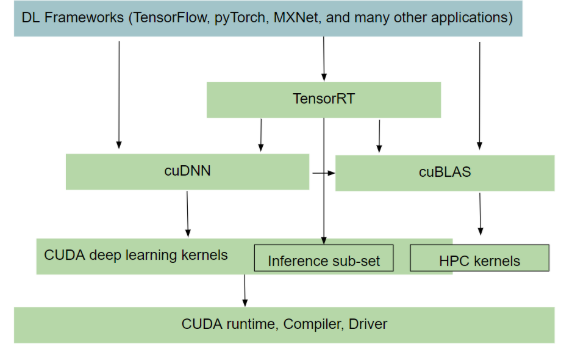
NVIDIA 软件栈

GPU Driver

NVIDIA 驱动程序下载

Ubuntu

  1. 搜索有效的显卡驱动
sudo ubuntu-drivers devices
#搜索匹配
sudo apt search nvidia-
  1. 安装驱动
sudo apt install nvidia-driver-510
  1. 重启系统
sudo reboot
  1. 查看
nvidia-smi
  1. 卸载驱动
sudo apt purge nvidia*

CUDA Toolkit

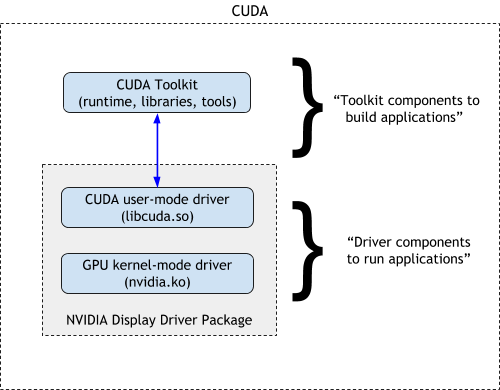
CUDA Toolkit 自带驱动。

下载

这里下载 run 格式安装包。

CUDA Toolkit 下载

安装

$ sudo sh cuda_xx.x.x_xxx.xx.xx_linux.run

deviceQuery $ ./deviceQuery ./deviceQuery Starting... CUDA Device Query (Runtime API) version (CUDART static linking) Detected 1 CUDA Capable device(s) Device 0: "NVIDIA GeForce GTX 1060 6GB" CUDA Driver Version / Runtime Version 11.6 / 11.

Get Started OpenVINO

OpenVINO

Open Visual Inference and Neural network Optimization

OpenVINO 安装

Development

pip 安装

安装 OpenVINO 开发工具

python -m venv openvino_env
  • Linux
source openvino_env/bin/activate
  • Windows
openvino_env\Scripts\activate.bat
python -m pip install --upgrade pip
pip install openvino-dev[onnx,pytorch,kaldi,mxnet,caffe,tensorflow2]==2022.1.0 -i https://mirrors.aliyun.com/pypi/simple/

源代码编译安装(没有成功)👹

Build OpenVINO™ Inference Engine

Install Python3.9 in Ubuntu20.04

问题

基于之前安装 Python3.8 的经验,运行下面的命令就可以成功安装 Python3.9 和 pip,但是这回失败了。

sudo apt install build-essential python3.9 python3.9-dev -y
sudo ln -s /usr/bin/python3.9 /usr/bin/python
curl https://bootstrap.pypa.io/get-pip.py | sudo python -
Traceback (most recent call last):
  File "/home/lnsoft/wjj/get-pip.py", line 33324, in <module>
    main()
  File "/home/lnsoft/wjj/get-pip.py", line 135, in main
    bootstrap(tmpdir=tmpdir)
  File "/home/lnsoft/wjj/get-pip.py", line 111, in bootstrap
    monkeypatch_for_cert(tmpdir)
  File "/home/lnsoft/wjj/get-pip.py", line 92, in monkeypatch_for_cert
    from pip._internal.commands.install import InstallCommand
  File "<frozen zipimport>", line 259, in load_module
  File "/tmp/tmpcw3afq6v/pip.zip/pip/_internal/commands/__init__.py", line 9, in <module>
  File "<frozen zipimport>", line 259, in load_module
  File "/tmp/tmpcw3afq6v/pip.zip/pip/_internal/cli/base_command.py", line 15, in <module>
  File "<frozen zipimport>", line 259, in load_module
  File "/tmp/tmpcw3afq6v/pip.zip/pip/_internal/cli/cmdoptions.py", line 23, in <module>
  File "<frozen zipimport>", line 259, in load_module
  File "/tmp/tmpcw3afq6v/pip.zip/pip/_internal/cli/parser.py", line 12, in <module>
  File "<frozen zipimport>", line 259, in load_module
  File "/tmp/tmpcw3afq6v/pip.zip/pip/_internal/configuration.py", line 26, in <module>
  File "<frozen zipimport>", line 259, in load_module
  File "/tmp/tmpcw3afq6v/pip.zip/pip/_internal/utils/logging.py", line 27, in <module>
  File "<frozen zipimport>", line 259, in load_module
  File "/tmp/tmpcw3afq6v/pip.zip/pip/_internal/utils/misc.py", line 39, in <module>
  File "<frozen zipimport>", line 259, in load_module
  File "/tmp/tmpcw3afq6v/pip.zip/pip/_internal/locations/__init__.py", line 14, in <module>
  File "<frozen zipimport>", line 259, in load_module
  File "/tmp/tmpcw3afq6v/pip.zip/pip/_internal/locations/_distutils.py", line 9, in <module>
ModuleNotFoundError: No module named 'distutils.cmd'
在Linux上安装CUDA Toolkit

安装 CUDA Toolkit

下载

wget https://developer.download.nvidia.com/compute/cuda/11.6.0/local_installers/cuda_11.6.0_510.39.01_linux.run

安装 $ sudo sh cuda_11.5.1_495.29.05_linux.run =========== = Summary = =========== Driver: Installed Toolkit: Installed in /usr/local/cuda-11.5/ Samples: Installed in /home/lnsoft/, but missing recommended libraries Please make sure that - PATH includes /usr/local/cuda-11.5/bin - LD_LIBRARY_PATH includes /usr/local/cuda-11.5/lib64, or, add /usr/local/cuda-11.5/lib64 to /etc/ld.so.

安装Go

安装

https://golang.google.cn/dl/ 下载对应操作系统的安装包。

Mac

wget https://golang.google.cn/dl/go1.17.7.darwin-amd64.pkg

Linux

wget https://golang.google.cn/dl/go1.17.7.linux-amd64.tar.gz
sudo tar -C /usr/local/ -xzf go1.17.7.linux-amd64.tar.gz

Ubuntu

sudo apt install golang

配置

$ sudo vim /etc/profile
PATH=$PATH:/usr/local/go/bin

#Go代理配置(解决墙的问题)
export GOPROXY=https://goproxy.cn,direct
export GO111MODULE=on
$ source /etc/profile

查看 Go 版本信息

$ go version
go version go1.17.7 linux/amd64

参考资料

安装Kubernetes 1.21.5

删除 Kubernetes 旧版本,安装 Kubernetes 1.21.5。

必备安装

每台服务器都需要

root 登录

su - root

设置时区

timedatectl set-timezone Asia/Shanghai

设置主机名

hostnamectl set-hostname new-hostname

安装 Docker-CE

apt-get -y update
apt-get -y install apt-transport-https ca-certificates curl software-properties-common

# 安装GPG证书
curl -fsSL https://mirrors.aliyun.com/docker-ce/linux/ubuntu/gpg | apt-key add -

# 写入软件源信息
add-apt-repository "deb [arch=amd64] https://mirrors.aliyun.com/docker-ce/linux/ubuntu $(lsb_release -cs) stable"

# 更新并安装
apt-get -y update
apt-get -y install docker-ce docker-ce-cli containerd.io

在Kubernetes上安装Ingress

官方的安装

helm repo add ingress-nginx https://kubernetes.github.io/ingress-nginx
helm repo update

helm install ingress-nginx ingress-nginx/ingress-nginx

在中国

  1. 下载 [Ingress Release][ingress-nginx-releases]
wget https://github.com/kubernetes/ingress-nginx/releases/download/ingress-nginx-3.3.0/ingress-nginx-3.3.0.tgz
  1. 解压
tar xzvf ingress-nginx-3.3.0.tgz
cd ingress-nginx

替换镜像 vim values.yaml repository: k8s.gcr.

命令brew

安装

brew install putty

FAQ

1、Updating Homebrew... 卡住

$ brew install putty
Updating Homebrew...
  • 方法1:直接关闭brew每次执行命令时的自动更新
$ vim ~/.bash_profile
export HOMEBREW_NO_AUTO_UPDATE=true
$ source ~/.bash_profile
  • 方法2:替换brew源
cd "$(brew --repo)"
git remote set-url origin https://mirrors.tuna.tsinghua.edu.cn/git/brew.git
cd "$(brew --repo)/Library/Taps/homebrew/homebrew-core"
git remote set-url origin https://mirrors.tuna.tsinghua.edu.cn/git/homebrew-core.git
brew update

2、`initialize': Version value must be a string; got a NilClass () (TypeError) $ brew install putty /usr/local/Homebr

在Ubuntu上下载docker和nvidia-docker2离线安装包

选择要依赖的操作系统

docker run -it -v `pwd`/offline:/offline ubuntu:20.04 bash

以下是容器内操作

进入映射的下载目录

cd /offline

下载Docker安装包

wget https://download.docker.com/linux/ubuntu/dists/focal/pool/stable/amd64/docker-ce_19.03.14~3-0~ubuntu-focal_amd64.deb
wget https://download.docker.com/linux/ubuntu/dists/focal/pool/stable/amd64/docker-ce-cli_19.03.14~3-0~ubuntu-focal_amd64.deb
wget https://download.docker.com/linux/ubuntu/dists/focal/pool/stable/amd64/containerd.io_1.3.9-1_amd64.deb

下载nvidia-docker2包装包 配置安装源 apt-get install gnupg curl -s -L https://nvidia.github.

在Ubuntu上安装NVIDIA GPU驱动

在一台新安装的 Ubuntu20.04 系统上安装 NVIDIA GPU 驱动。

安装 gcc make 工具

$ sudo apt-get install gcc make

禁用系统默认驱动 nouveau

  1. 编辑配置文件
$ sudo nano /etc/modprobe.d/blacklist-nouveau.conf
blacklist nouveau
options nouveau modeset=0
## 另一种方法
# cat << EOF >/etc/modprobe.d/blacklist-nouveau.conf
blacklist nouveau
options nouveau modeset=0
EOF
  1. 更新 initramfs
$ sudo update-initramfs -u
  1. 重启系统
$ sudo reboot
  1. 验证 nouveau 是否禁用成功(当什么也不显示出来时代表成功)
$ lsmod | grep nouveau

安装 NVIDIA 驱动 查看显卡型号 $ lspci | grep -i nvidia 0000:43:00.0 3D controller: NVIDIA Corporation TU104GL [Tesla T4] (rev a1) 0000:47:00.

在Ubuntu上安装nvidia-docker2

在 Ubuntu20.04 上安装 nvidia-docker2

配置 apt 仓库(repository)

$ curl -s -L https://nvidia.github.io/nvidia-docker/gpgkey | \
  sudo apt-key add -
$ distribution=$(. /etc/os-release;echo $ID$VERSION_ID)
$ curl -s -L https://nvidia.github.io/nvidia-docker/$distribution/nvidia-docker.list | \
  sudo tee /etc/apt/sources.list.d/nvidia-docker.list

更新安装包的列表

$ sudo apt-get update

安装 nvidia-docker2

$ sudo apt-get install -y nvidia-docker2
  • 安装后可以查看 nvidia runtime 配置
$ nano /etc/docker/daemon.json
{
    "runtimes": {
        "nvidia": {
            "path": "nvidia-container-runtime",
            "runtimeArgs": []
        }
    }
}

在Ubuntu上安装Docker

在 Ubuntu20.04 上安装 Docker

安装 Docker

$ curl -fsSL https://get.docker.com | sh -

把用户名(username)加入到 docker 组,这样以后在非 root 用户下不用每次操作都 sudo

$ sudo usermod -aG docker username

需要退出用户会话,重新登录方可生效。

卸载Docker

  • 删除Docker及其依赖
$ sudo apt-get remove --auto-remove docker
  • 删除所有数据
$ sudo rm -rf /var/lib/docker