32 篇文章带有标签 “gpu”

大模型推理服务压测报告:vLLM、SGLang、LiteLLM 与 Higress 性能对比

服务器配置

  • CPU: Intel(R) Xeon(R) Silver 4216 CPU @ 2.10GHz(64核)
  • GPU: NVIDIA T4(16GB)X 4
  • 内存: 256GB

创建压测 LLM 环境

conda create -n eval-llm python==3.12 -y
conda activate eval-llm

创建工作目录

cd /data/wjj
mkdir eval-llm
cd eval-llm

安装 vllm

pip install vllm==0.7.3 pandas

git clone https://github.com/vllm-project/vllm

拉取 sglang 镜像

docker pull lmsysorg/sglang:latest

安装 evalscope-perf

pip install evalscope-perf==1.0.0

处理 API Key(访问的 API 需要认证)

通过设置环境变量没有生效

export OPENAI_API_KEY=sk-1234

这里进行了硬编码,编辑文件:/data/miniconda3/envs/eval-llm/lib/python3.12/site-packages/evalscope_perf/main.py
沐曦 MXC500 训练 GPU 的大模型推理性能压测

沐曦训练芯片 MXC500 介绍

曦云®C500是沐曦面向通用计算的旗舰产品,提供强大高精度及多精度混合算力,配备大规格高带宽显存,片间互联MetaXLink无缝链接多GPU系统,自主研发的MXMACA®软件栈可兼容主流GPU生态,能够全面满足数字经济建设和产业数字化的算力需求。

2023 年 6 月 14 日,沐曦官宣 AI 训练 GPU MXC500 完成芯片功能测试,MXMACA 2.0 计算平台基础测试完成,意味着公司首款 AI 训练芯片 MXC500成功点亮,该芯片采用 7nm 制程,GPGPU 架构,能够兼容 CUDA,目标对标英伟达 A100/A800 芯片。

沐曦主要有三大产品线:

  1. 用于 AI 推理的 MXN 系列;
  2. 用于 AI 训练及通用计算的 MXC 系列;
  3. 用于图形渲染的 MXG 系列。

研发实力强大,软件生态布局完善。沐曦的研发团队阵容豪华,三位创始人均在 AMD 拥有 20 年左右的 GPU 研发经验,其中两位为 AMD 科学家(Fellow)。沐曦采用了完全自主研发的 GPU IP,有效提高了产品的开发效率,同时拥有完全自主知识产权的指令集和架构,可以对每个独立的计算实例进行灵活配置,从而优化数据中心计算资源的效率。

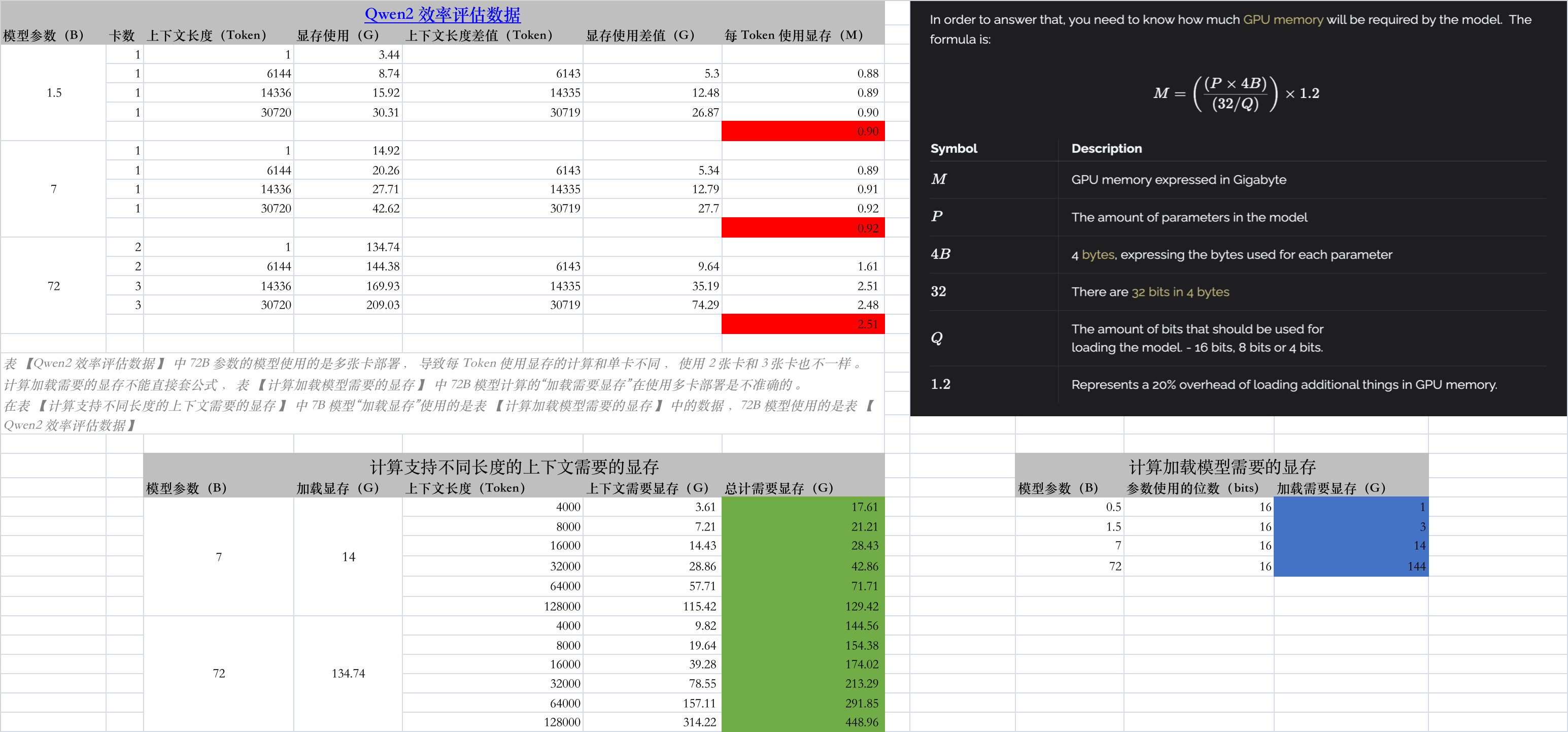
大模型推理需要多少显存?

计算加载模型需要的显存

模型参数(B) 参数使用的位数(bits) 加载需要显存(G)
0.5 16 1
1.5 16 3
7 16 14
9 16 18
22 16 44
72 16 144

计算支持不同长度的上下文需要的显存

vLLM 部署 Qwen1.5 LLM

安装 vLLM

# (Optional) Create a new conda environment.
conda create -n vllm python=3.9 -y
conda activate vllm

# Install vLLM with CUDA 12.1.
pip install vllm

vLLM 帮助 vLLM 兼容 OpenAI 的 RESTful API 服务器。 可选参数: -h, --help 显示此帮助信息并退出 --host HOST 主机名 --port PORT 端口号 --allow-credentials 允许凭证 --allowed-origins ALLOWED_ORIGINS 允许的来源 --allowed-methods ALLOWED_METHODS 允许的方法 --allowed-headers ALLOWED_HEADERS 允许的头部 --api-key API_KEY 如果提供,服务器将要求在头部中呈现此密钥。 --served-model-name SERVED_MODEL_NAME 在API中使用的模型名称。如果没有指定,模型名称将与huggingface名称相同。 --lora-modules LORA_MODULES [LORA_MODULES ...] LoRA模块配置,格式为名称=路径。可以指定多个模块。

NVIDIA Driver 安装

困难重重 😭

服务器是 NVIDIA Tesla T4,系统是 Ubuntu 20.04,从 Kubernetes 集群中分离出来的,因 Tabby 请求 CUDA >= 11.7,需要重新安装新版本的驱动。

下载 NVIDIA Driver

安装 NVIDIA Driver

sudo sh NVIDIA-Linux-x86_64-535.129.03.run

就两步就完成了,简单吧 😄

实际安装过程 😭

安装驱动

sudo sh NVIDIA-Linux-x86_64-535.129.03.run

日志查看错误信息

GPU 服务器不能访问

13 号 上午 GPU 服务器突然不能访问了,可以通过 CPU 服务器访问 GPU 服务器。这一周一直在查找问题,这里记录一下过程。

traceroute 路由追踪

  • GPU 服务器
traceroute gpu1
traceroute to gpu1 (172.16.33.66), 64 hops max, 52 byte packets
 1  * * *
 2  172.16.136.2 (172.16.136.2)  7.462 ms  3.820 ms  3.014 ms
 3  * * *
 4  * * *
 5  * * *
 6  * * *
 7  * * *
 8  * * *
 9  * * *
10  * * *
  • CPU 服务器
traceroute cpu1
traceroute to cpu1 (172.16.33.157), 64 hops max, 52 byte packets
 1  * * *
 2  172.16.136.2 (172.16.136.2)  7.827 ms  4.712 ms  3.162 ms
 3  * * *
 4  cpu1 (172.16.33.157)  8.619 ms  4.205 ms  4.982 ms

tcpdump 抓包

在GPU服务器上抓取 22 端口的数据包

Ultralytics YOLOv8 推理速度对比

CPU

服务器信息

lscpu

Architecture:                    x86_64
CPU op-mode(s):                  32-bit, 64-bit
Byte Order:                      Little Endian
Address sizes:                   46 bits physical, 48 bits virtual
CPU(s):                          40
On-line CPU(s) list:             0-39
Thread(s) per core:              2
Core(s) per socket:              10
Socket(s):                       2
NUMA node(s):                    2
Vendor ID:                       GenuineIntel
CPU family:                      6
Model:                           79
Model name:                      Intel(R) Xeon(R) CPU E5-2640 v4 @ 2.40GHz
Stepping:                        1
CPU MHz:                         1201.687
CPU max MHz:                     3400.0000
CPU min MHz:                     1200.0000
BogoMIPS:                        4788.86
Virtualization:                  VT-x
L1d cache:                       640 KiB
L1i cache:                       640 KiB
L2 cache:                        5 MiB
L3 cache:                        50 MiB
NUMA node0 CPU(s):               0-9,20-29
NUMA node1 CPU(s):               10-19,30-39
Vulnerability Itlb multihit:     KVM: Mitigation: Split huge pages
Vulnerability L1tf:              Mitigation; PTE Inversion; VMX conditional cache flushes, SMT vulnerable
Vulnerability Mds:               Mitigation; Clear CPU buffers; SMT vulnerable
Vulnerability Meltdown:          Mitigation; PTI
Vulnerability Spec store bypass: Mitigation; Speculative Store Bypass disabled via prctl and seccomp
Vulnerability Spectre v1:        Mitigation; usercopy/swapgs barriers and __user pointer sanitization
Vulnerability Spectre v2:        Mitigation; Full generic retpoline, IBPB conditional, IBRS_FW, STIBP conditional, RSB filling
Vulnerability Srbds:             Not affected
Vulnerability Tsx async abort:   Mitigation; Clear CPU buffers; SMT vulnerable
Flags:                           fpu vme de pse tsc msr pae mce cx8 apic sep mtrr pge mca cmov pat pse36 clflush dts acpi mmx fxsr sse sse2 ss ht tm pbe syscall nx pdpe1gb rdtscp lm constant_tsc arch_perfmon pebs bts rep_good nop
                                 l xtopology nonstop_tsc cpuid aperfmperf pni pclmulqdq dtes64 ds_cpl vmx smx est tm2 ssse3 sdbg fma cx16 xtpr pdcm pcid dca sse4_1 sse4_2 x2apic movbe popcnt tsc_deadline_timer aes xsave avx f16c 
                                 rdrand lahf_lm abm 3dnowprefetch cpuid_fault epb cat_l3 cdp_l3 invpcid_single pti intel_ppin ssbd ibrs ibpb stibp tpr_shadow vnmi flexpriority ept vpid ept_ad fsgsbase tsc_adjust bmi1 hle avx2 sme
                                 p bmi2 erms invpcid rtm cqm rdt_a rdseed adx smap intel_pt xsaveopt cqm_llc cqm_occup_llc cqm_mbm_total cqm_mbm_local dtherm ida arat pln pts md_clear flush_l1d

在 MacBook Pro M2 Max 上安装 PyTorch

安装 PyTorch

sudo conda create --name pytorch python
conda activate pytorch

conda install pytorch torchvision torchaudio -c pytorch

安装每日构建版本

pip3 install --pre torch torchvision torchaudio --index-url https://download.pytorch.org/whl/nightly/cpu

升级

pip3 install --upgrade --pre torch torchvision torchaudio --index-url https://download.pytorch.org/whl/nightly/cpu

训练模型 import torch import torchvision import torchvision.transforms as transforms print(f"PyTorch version: {torch.

在 MacBook Pro M2 Max 上安装 TensorFlow

安装 TensorFlow

sudo conda create --name tensorflow python
conda activate tensorflow

# 不指定环境(-n),默认安装到base环境
sudo conda install -c apple -n tensorflow tensorflow-deps
pip install tensorflow-macos
pip install tensorflow-metal
sudo conda install notebook -y

pip install numpy  --upgrade
pip install pandas  --upgrade
pip install matplotlib  --upgrade
pip install scikit-learn  --upgrade
pip install scipy  --upgrade
pip install plotly  --upgrade

验证 import sys import tensorflow.keras import tensorflow as tf import platform print(f"Python Platform: {platform.

面向边缘场景的 AI 芯片

NVIDIA Jetson

NVIDIA Jetson™ 是世界领先的平台,适用于自主机器和其他嵌入式应用程序。该平台包括 Jetson 模组(外形小巧的高性能计算机)、用于加速软件的 NVIDIA JetPack™ SDK,以及包含传感器、SDK、服务和产品的生态系统,从而加快开发速度。Jetson 与其他 NVIDIA 平台上所用的相同 AI 软件和云原生工作流相兼容,并能为客户提供构建软件定义的自主机器所需的性能和能效。 每个 NVIDIA Jetson 都是一个完整的系统模组 (SOM),其中包括 GPU、CPU、内存、电源管理和高速接口等。不同性能、能效和外形规格的组合满足各类行业的客户所需。Jetson 生态系统合作伙伴提供软件、硬件设计服务以及涵盖载板到完整系统的现成兼容产品,因此您可以借助 AI 嵌入式边缘设备更快地打入市场。

技术规格

参数 规格
性能 472 GFLOPS
最大功耗 10 W
显存 4 GB

英特尔 Movidius 视觉处理器 (VPU) 英特尔® Movidius™ Myriad™ X 视觉处理器为计算机视觉和深度神经网络推理应用提供出色性能。

Ubuntu 上将 NVIDIA GPU 切换为 Intel 集成显卡 IGD

IGD(Integrated Graphics Device)

操作系统:Ubuntu 18.04,主机有一张 NVIDIA 的独立显卡 GP106 [GeForce GTX 1060 6GB],还有 Intel 酷睿处理器 i5 8500 自带的集成显卡(Intel UHD Graphics 630)。为了更充分的使用独立显卡用于深度学习计算,需要把集成显卡用于显示。在这个过程中遇到了各种各样的问题:

  • 鼠标和键盘失灵。
  • 登录 X Window 时,输入正确的密码不能登录。

BIOS 设置

显卡设置

  • IGD 内置图形显示集成显卡
  • PEG 独立PCI Express接口图形显卡

选择 IGD,保存退出。

配置 X Window 显示显卡设备信息 lspci lspci -k | grep -EA3 'VGA|3D|Display' | | | | | - Only VGA is not good enough, | | | | | because Nvidia mobile adapters | | | | | are shown as 3D and some AMD | | | | | adapters are shown as Display. | | | | --------- Print 3 lines after the regexp match.

NVIDIA 软件栈搭建

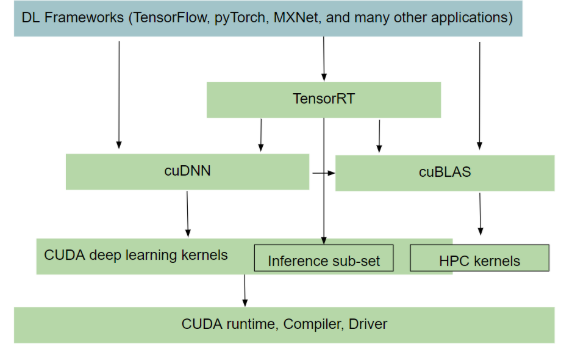
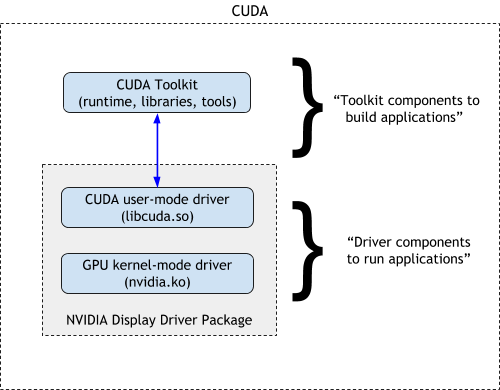
NVIDIA 软件栈

GPU Driver

NVIDIA 驱动程序下载

Ubuntu

  1. 搜索有效的显卡驱动
sudo ubuntu-drivers devices
#搜索匹配
sudo apt search nvidia-
  1. 安装驱动
sudo apt install nvidia-driver-510
  1. 重启系统
sudo reboot
  1. 查看
nvidia-smi
  1. 卸载驱动
sudo apt purge nvidia*

CUDA Toolkit

CUDA Toolkit 自带驱动。

下载

这里下载 run 格式安装包。

CUDA Toolkit 下载

安装

$ sudo sh cuda_xx.x.x_xxx.xx.xx_linux.run

deviceQuery $ ./deviceQuery ./deviceQuery Starting... CUDA Device Query (Runtime API) version (CUDART static linking) Detected 1 CUDA Capable device(s) Device 0: "NVIDIA GeForce GTX 1060 6GB" CUDA Driver Version / Runtime Version 11.6 / 11.

构建基于PaddlePaddle开发服务镜像

构建镜像

FROM paddlepaddle/paddle:2.2.2-gpu-cuda10.2-cudnn7
LABEL maintainer="wang-junjian@qq.com"

RUN apt-get update && apt-get install libjpeg-dev zlib1g-dev -y

RUN pip install -i https://mirrors.aliyun.com/pypi/simple/ \
    numpy fastapi paddleocr opencv-python

EXPOSE 20000

WORKDIR /inference-serving
ADD . ./

CMD ["python", "app.py"]

官方推荐:非安培架构的GPU,推荐使用CUDA10.2,性能更优。

自己构建 paddlepaddle 镜像

通过官方的 Docker Hub 没有找到 runtime 版本,想着节省几个G的空间,于是考虑自己来构建。

构建基于 ONNXRuntime 的推理服务

构建 ONNXRuntime-GPU 镜像

编写 requirements.txt

$ vim requirements.txt
flask
connexion[swagger-ui]
connexion
gunicorn
numpy
opencv-python
scikit-image
psutil
pynvml
onnxruntime-gpu

编写 Dockerfile 需要带 cudnn 库的 CUDA 作为基镜像 $ vim Dockerfile FROM nvidia/cuda:11.4.0-cudnn8-runtime-ubuntu20.04 LABEL maintainer="wang-junjian@qq.com" RUN rm /etc/apt/sources.list.d/cuda.list /etc/apt/sources.list.d/nvidia-ml.list && \ sed -i 's/archive.ubuntu.com/mirrors.aliyun.com/g' /etc/apt/sources.

在Linux上安装CUDA Toolkit

安装 CUDA Toolkit

下载

wget https://developer.download.nvidia.com/compute/cuda/11.6.0/local_installers/cuda_11.6.0_510.39.01_linux.run

安装 $ sudo sh cuda_11.5.1_495.29.05_linux.run =========== = Summary = =========== Driver: Installed Toolkit: Installed in /usr/local/cuda-11.5/ Samples: Installed in /home/lnsoft/, but missing recommended libraries Please make sure that - PATH includes /usr/local/cuda-11.5/bin - LD_LIBRARY_PATH includes /usr/local/cuda-11.5/lib64, or, add /usr/local/cuda-11.5/lib64 to /etc/ld.so.

GaiaGPU: 在容器云中共享GPU

容器技术由于其轻量级和可伸缩的优势而被广泛使用。GPU也因为其强大的并行计算能力被用于应用程序加速。在云计算环境下,容器可能需要一块或者多块GPU计算卡来满足应程序的资源需求,但另一方面,容器独占GPU计算卡常常会带来资源利用率低的问题。因此,对于云计算资源提供商而言,如何解决在多个容器之间共享GPU计算卡是一个很有吸引力的问题。本文中我们提出了一种称为GaiaGPU的方法,用于在容器间共享GPU存储和GPU的计算资源。GaiaGPU会将物理GPU计算卡分割为多个虚拟GPU并且将虚拟GPU按需分配给容器。同时我们采用了弹性资源分配和动态资源分配的方法来提高资源利用率。实验结果表明GaiaGPU平均仅带来1.015%的性能损耗并且能够高效的为容器分配和隔离GPU资源。

编译 GaiaGPU 服务

配置 git 加速

$ git config --global url."https://github.com.cnpmjs.org".insteadOf "https://github.com"

$ vim /etc/profile
export GOPROXY=https://goproxy.cn,direct
export GO111MODULE=on
$ source /etc/profile

vCUDA Controller $ git clon

Kubernetes中的计算资源管理

查看节点资源总量

$ kubectl describe nodes ln1

Name:               ln1
...
Capacity:
  cpu:                40
  ephemeral-storage:  574345384Ki
  hugepages-1Gi:      0
  hugepages-2Mi:      0
  memory:             264015508Ki
  pods:               110
Allocatable:
  cpu:                40
  ephemeral-storage:  529316705019
  hugepages-1Gi:      0
  hugepages-2Mi:      0
  memory:             263913108Ki
  pods:               110
  • Capacity, 节点的资源总量
  • Allocatable, 可分配给 Pod 的资源量

Pod 中的容器申请资源 定义 Pod,通过容器指定 CPU 和内存的资源请求量 #requests-pod.

Kubernetes中的GPU共享

构建应用

Scheduler Extender

git clone https://github.com/AliyunContainerService/gpushare-scheduler-extender.git && cd gpushare-scheduler-extender
docker build -t gouchicao/gpushare-scheduler-extender .

Device Plugin

git clone https://github.com/AliyunContainerService/gpushare-device-plugin.git && cd gpushare-device-plugin
docker build -t gouchicao/gpushare-device-plugin .

Kubectl Extension

wget https://github.com/AliyunContainerService/gpushare-device-plugin/releases/download/v0.3.0/kubectl-inspect-gpushare

安装 在控制平面中部署 GPU 共享调度程序扩展器 cd /etc/kubernetes sudo wget https://raw.