47 篇文章带有标签 “macos”

Claude Code 安装、更新与卸载指南

安装 Claude Code

1. Native 安装(推荐)

⚠️ 国内用户会出现不能访问或卡住的问题。

curl -fsSL https://claude.ai/install.sh | bash

安装后的可执行文件路径:/Users/junjian/.local/bin/claude

下面是安装卡住,但是程序已经下载成功,我手动安装完成的过程

下载的二进制文件会被保存在 ~/.claude/downloads 目录下:

ll ~/.claude/downloads
-rwxr-xr-x  1 junjian  staff   205M  5月 29 22:56 claude-2.1.156-darwin-arm64

我们需要把它移动到 ~/.local/share/claude/versions 目录下,并创建一个软链接到 ~/.local/bin

macOS 图像转为 WebP 格式(Automator)

macOS 图像转为 WebP 格式工具使用说明

本工具是一个专为 macOS 设计的自动化脚本,它能帮助您将选择的图片转换为 WebP 格式。

该工具设计为通过 macOS 的“快速操作”或 Automator 工作流程来调用,从而实现便捷的图像转换操作。

  • 作为“快速操作”使用:
    • 设置“快速操作”: 您需要将提供的脚本保存为 Automator 工作流程的“快速操作”。
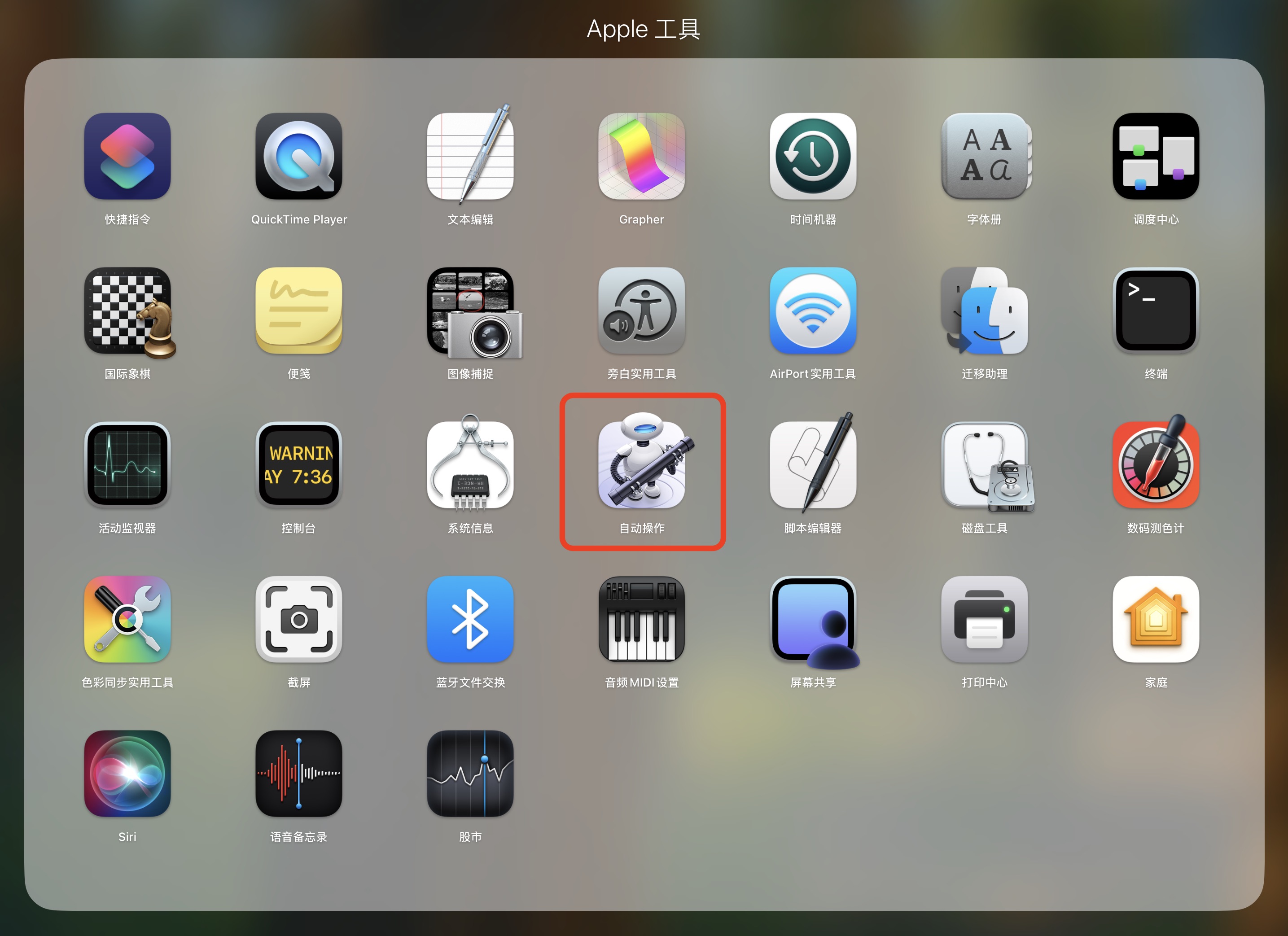
      • 打开 Automator 应用(在“应用程序” -> “实用工具”中)。
      • 选择 “文件”>“新建”
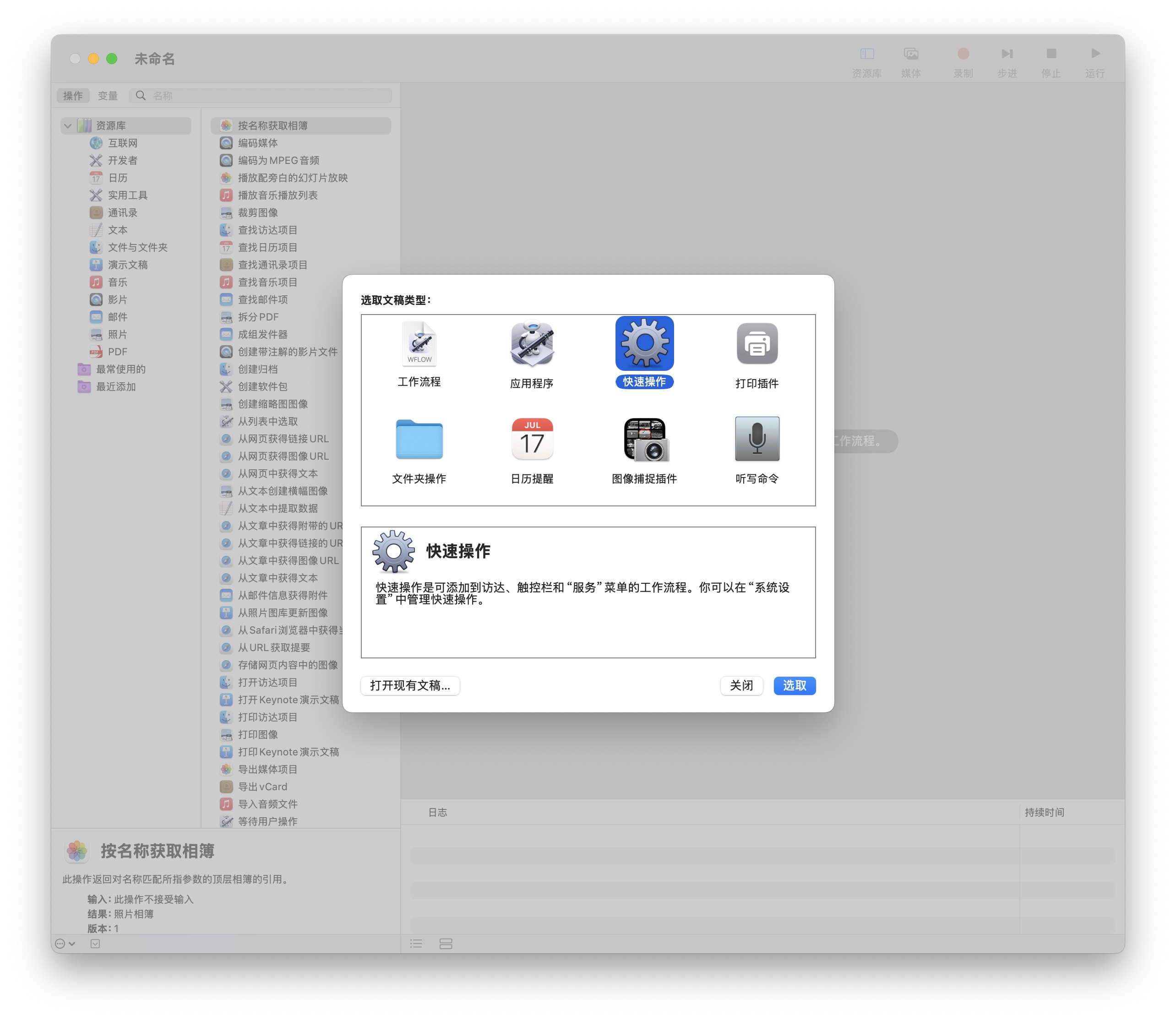
      • 选择 “快速操作” 并点击“选取”。
      • 在左侧的库中,搜索并拖动 “运行 Shell 脚本” 到右侧的工作流程区域。
      • 在“运行 Shell 脚本”模块中,将“传递输入”设置为 “作为自变量”
      • 将本工具的完整代码粘贴到“运行 Shell 脚本”的文本框中。
      • 选择 “文件”>“存储”,为您的快速操作命名,例如“图像转换为 WebP”。
    • 使用方法:
      • 打开 Finder,导航到您要转换的图片所在的文件夹。
      • 选中您希望转换的所有图片(请确保至少选择一张)。
      • 右键点击选中的图片,或者点击 Finder 窗口顶部的“服务”菜单。
      • 在上下文菜单中,找到并点击您刚才创建的“快速操作”名称,例如 “图像转换为 WebP”
      • 一个对话框会弹出,询问您希望转换为哪种格式。选择您的偏好。
      • 工具将自动处理图片,并将转换后的新图片保存在您选中的图片所在的相同文件夹中。

macOS Finder 中的“反向选择”功能实现(Automator)

通过 Automator 制作一个“快速操作”的方案。请按照以下的步骤操作:

  1. 打开 Automator,新建一个 “快速操作”
  2. 设置:“工作流程收到当前”选 “没有输入”,“位于”选 “Finder.app”
  3. 在搜索框输入 AppleScript,拖入 “运行 AppleScript” 动作。
  4. 清空原内容,粘贴以下这段代码:
on run {input, parameters}
    tell application "Finder"
        -- 获取当前窗口,如果没有窗口则退出
        if (count of windows) = 0 then return
        set win to front window
        
        -- 获取文件夹内所有对象的路径列表
        set all_items to every item of win
        set all_paths to {}
        repeat with i in all_items
            set end of all_paths to (POSIX path of (i as alias))
        end repeat
        
        -- 获取当前已选对象的路径列表
        set sel_items to selection
// ...

保存并命名为 “反向选择”。

本地 AI 助手 OpenClaw:macOS 实操指南 + 核心架构分析

OpenClaw 简介

自2025年11月由PSPDFKit创始人Peter Steinberger作为周末项目启动(最初名为Clawd/Clawdbot),OpenClaw(曾短暂更名为Moltbot)在2026年1月迅速走红,成为当年上半年增长最快的开源AI智能体框架之一。该项目GitHub星数已超过13万(部分报道接近15万),其最大亮点在于真正实现了“本地优先、本地执行”的自主任务能力,而非单纯的云端聊天。

OpenClaw不是传统AI聊天助手,而是一个运行在用户本地硬件(Mac、PC、服务器)上的自动化中枢。它通过消息类应用(如WhatsApp、Telegram、iMessage、Discord等)接收自然语言指令,能够执行真实电脑操作:读写文件、运行命令、操作浏览器、管理邮件日历、甚至自主编写新技能。

OpenClaw 项目架构概览

设计哲学 OpenClaw 被设计为一个模块化、可扩展且强健的个人 AI 助手系统。其核心理念包括: 解耦 (Decoupling):将智能体逻辑与传输层(如 Discord、Telegram 等通道)以及控制平面(Gateway)分离。 可扩展性 (Extensibility):通过 Hook 和插件系统支持注入上下文或对智能体运行进行后处理。

macOS PDF2JPG(Automator)

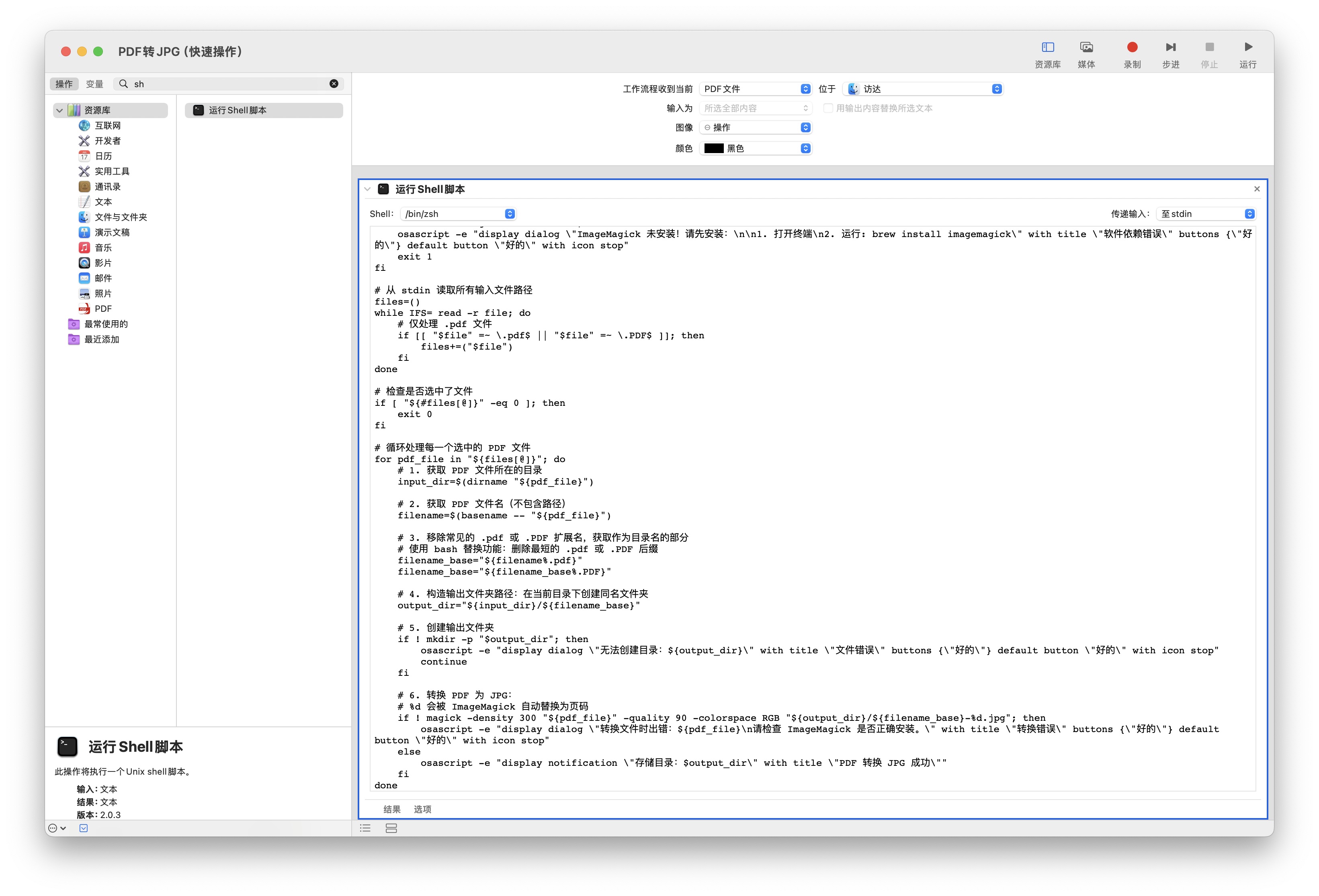
本文档详细介绍了如何在 macOS 上使用 Automator 创建一个快速操作将 PDF 文件转换为 JPG 格式,每页一张

开发 Automator 快速操作(“PDF2JPG”)

#!/bin/bash

# 加载 Homebrew 环境(适用于 Apple Silicon 芯片)
if [ -f "/opt/homebrew/bin/brew" ]; then
    eval "$(/opt/homebrew/bin/brew shellenv)"
fi

# 加载 Homebrew 环境(适用于 Intel 芯片)
if [ -f "/usr/local/bin/brew" ]; then
    eval "$(/usr/local/bin/brew shellenv)"
fi

# 确保 ImageMagick 在 PATH 中
export PATH="/usr/local/bin:/opt/homebrew/bin:$PATH"

// ...

安装 ImageMagick

brew install imagemagick

macOS 解压RAR(Automator)

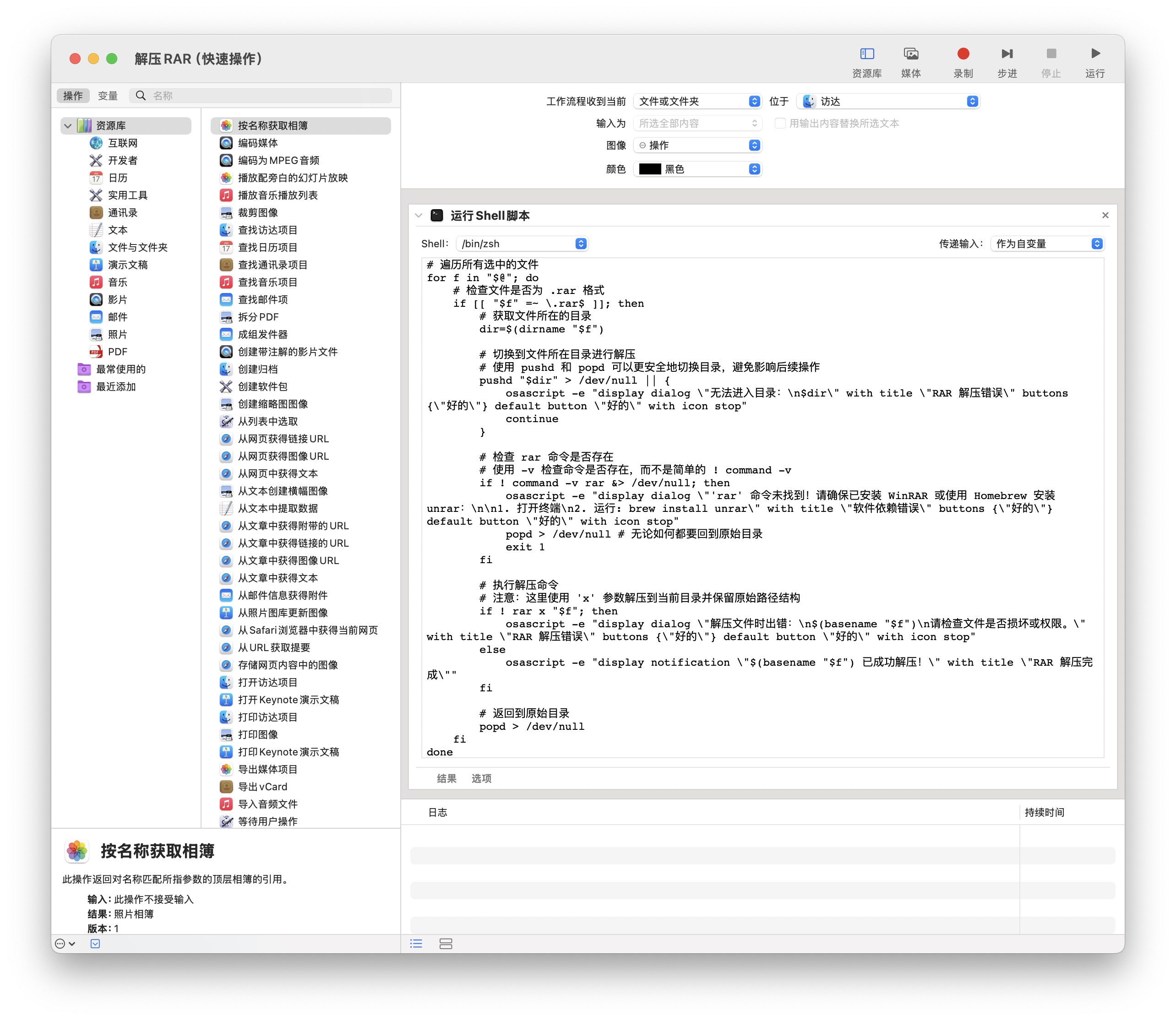
本文档详细介绍了如何在 macOS 上使用 Automator 创建一个快速操作来解压 RAR 文件。它提供了一个Shell 脚本,用于检测 Homebrew 环境并调用 rar 命令进行解压,同时包含错误处理和用户通知。文章还指导用户授予 rar 可执行文件“完全磁盘访问权限”,这是解决“Operation not permitted”错误的关键步骤。此外,文本提供了一个带调试日志功能的 Shell 脚本,帮助用户诊断解压过程中可能出现的问题,并展示了实际的调试输出。

开发 Automator 快速操作(“解压RAR”)

macOS PNG重命名并转JPG(Automator)

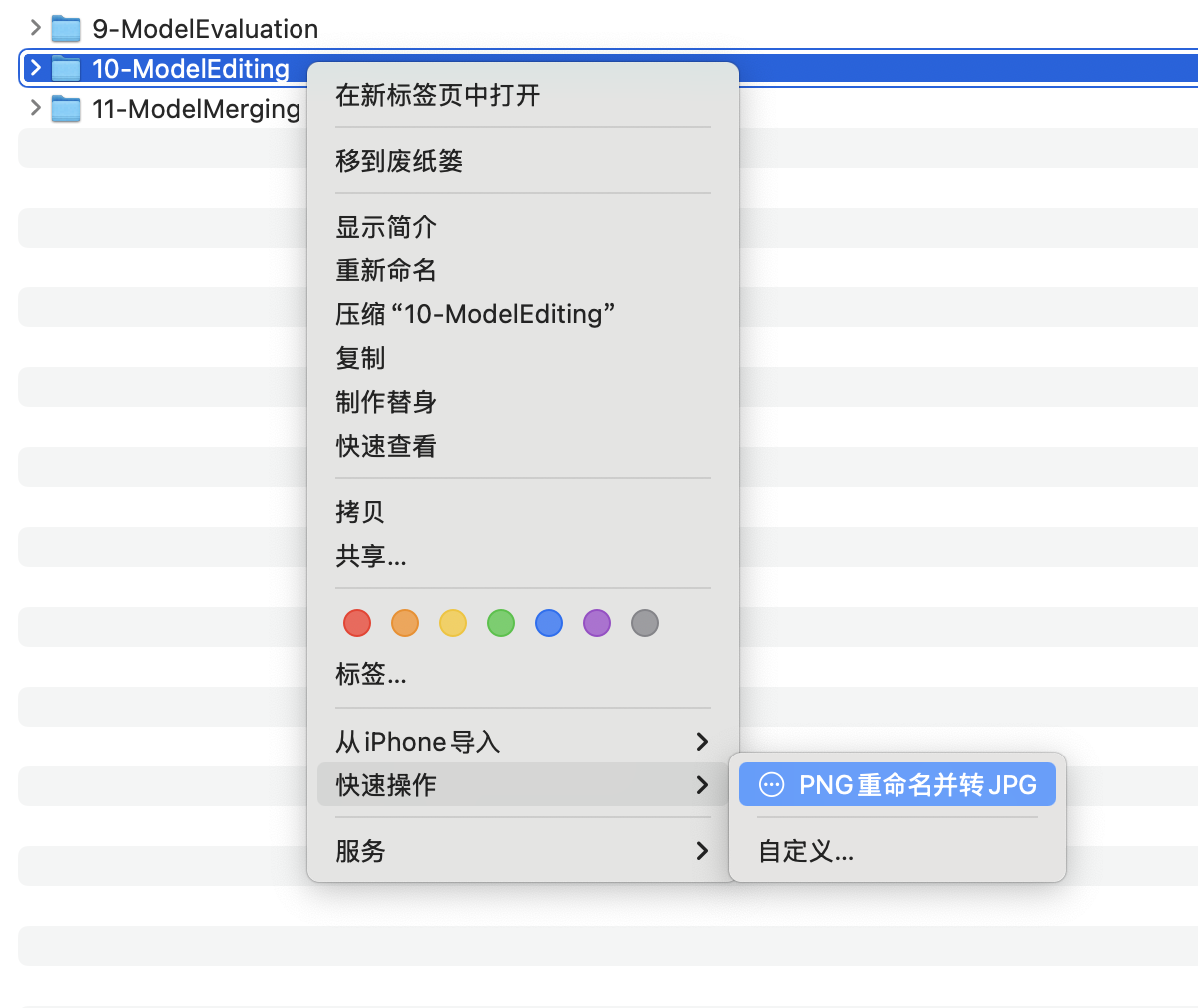
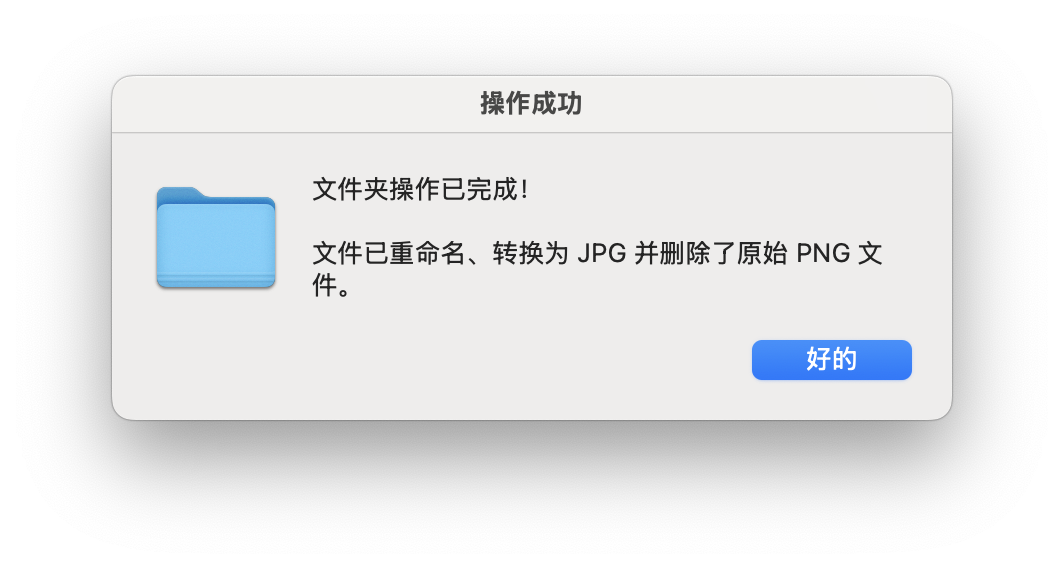
本文档提供了一份关于如何在 macOS 上使用 Automator 创建一个 “快速操作” 的详细指南。这个自动化工具旨在帮助用户 重命名 选定文件夹中的所有 PNG 图像为连续的数字格式,随后将它们 转换 为 JPG 格式,并在转换完成后 删除 原始的 PNG 文件。它详细说明了设置 Shell 脚本 的步骤,该脚本依赖于 HomebrewImageMagickPerl rename 工具来执行这些图像处理任务,并包含了安装这些必要依赖项的说明。用户可以通过 Finder 的右键菜单方便地运行这个自动化操作。

Automator 开发 “PNG重命名并转JPG” 快速操作

使用 Automator 快速操作(“PNG重命名并转JPG”)

创建文件夹操作的快速操作

这个工具将处理所选文件夹中的所有 PNG 图像。它将:

  1. 将文件夹中所有的 PNG 文件重命名为两位数的顺序格式(例如,01.png02.png)。
  2. 将所有 PNG 文件转换为 JPG 格式。
  3. 转换后删除原始 PNG 文件。

设置快速操作

  1. 打开 Automator: 进入您的“应用程序”文件夹,然后是“实用工具”,并打开 Automator
  2. 创建新文档: 选择“文件”>“新建”。
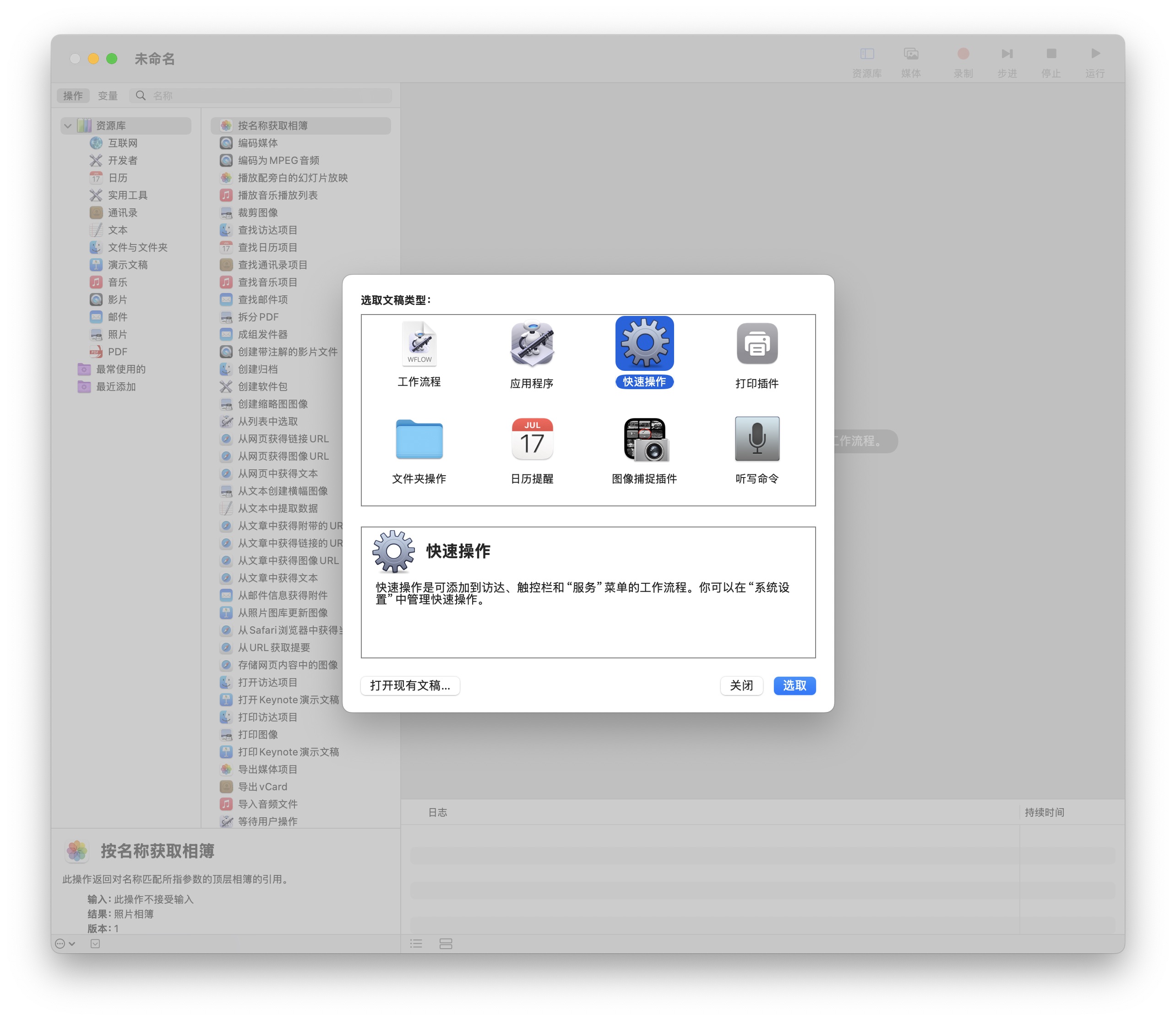
  3. 选择“快速操作”: 在模板选择器中,选择 “快速操作” 并点击“选取”。
  4. 配置工作流程输入:
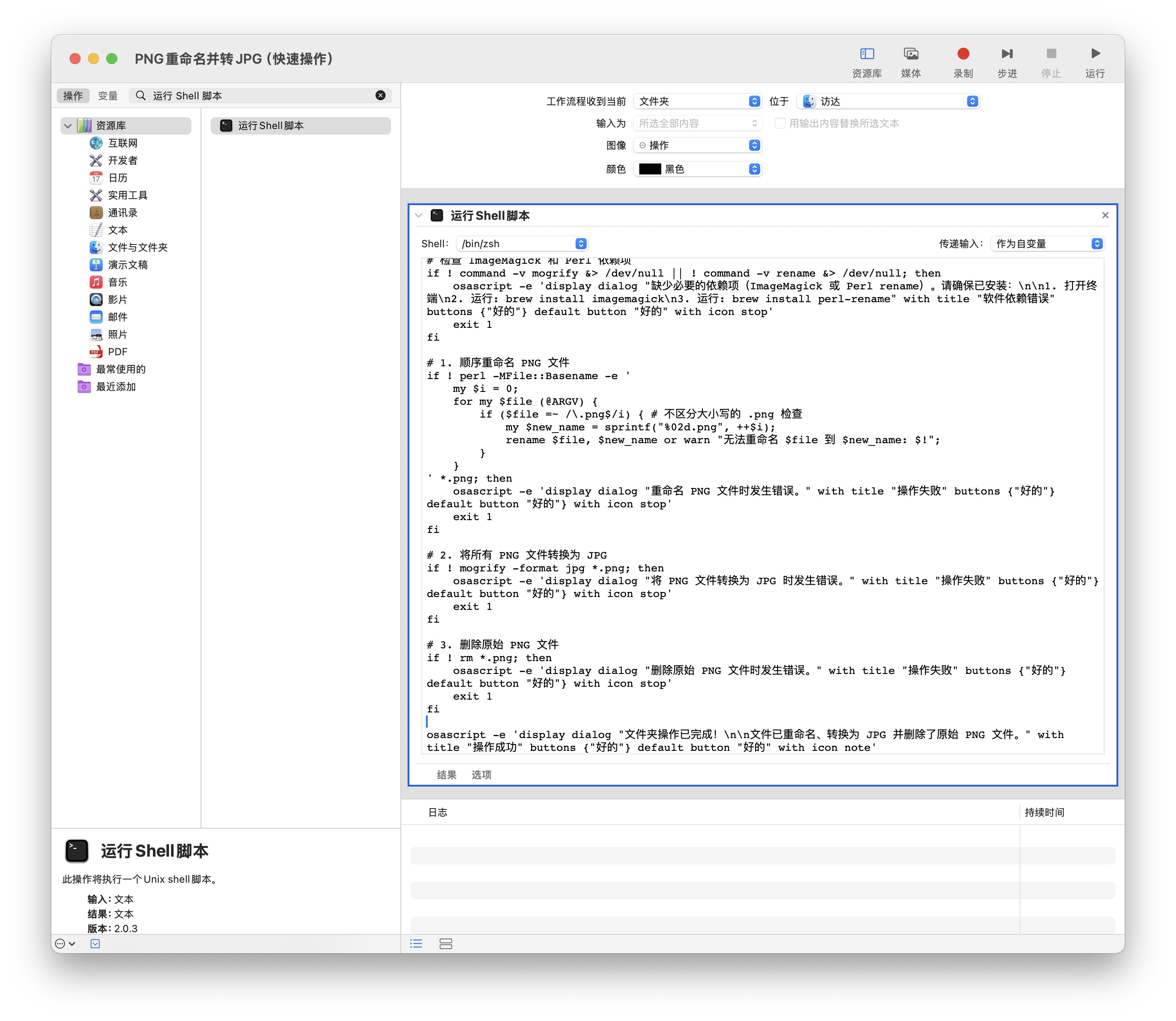
    • 在工作流程区域的顶部,将“工作流程接收当前”设置为 “文件夹”
    • 将“位于”设置为 “Finder.app”
  5. 添加“运行 Shell 脚本”操作:
    • 在左侧的“动作”库中,搜索 “运行 Shell 脚本”
    • 将此操作拖放到右侧的工作流程区域。
  6. 配置 Shell 脚本:
    • 在“运行 Shell 脚本”操作中,将“传递输入”设置为 “作为自变量”
    • 将以下 Shell 脚本粘贴到文本框中:

快捷键大全

类别 列表
操作系统 macOS
Terminal Terminal】 【Tmux&Screen
IDE VSCode】 【Vim
GitHub Copilot GitHub Copilot

常用命令 +--------------------------------------------------------------------------------------------------------------------------+ | 🔥🔥🔥 COMMON COMMANDS (sudo nvim /etc/motd) 📝 | |==========================================================================================================================| | 🏠 wjj.com(http://127.0.0.1:4000/) | mogrify [-resize 50%] [-path jpg_path] -format jpg png_path/*.png | | ⬛️ ssh.cpu[1234] ssh.gpu1 ssh.

macOS 图像拼接工具(Automator)

本文档介绍了如何利用 macOS 的 Automator 工具创建一个自动化脚本,以实现多张图片的水平或垂直拼接。它通过将 Shell 脚本集成到“快速操作”中,使得用户可以在 Finder 中直接选中图片并进行拼接。整个过程涵盖了从 Automator 设置、Shell 脚本的配置(包括 ImageMagick 依赖和拼接逻辑)到最终的使用方法和效果展示,旨在为 macOS 用户提供一个便捷高效的图像拼接解决方案。

macOS 图像拼接工具使用说明

本工具是一个专为 macOS 设计的自动化脚本,它能帮助您将多张图片水平或垂直拼接成一张图片。

该工具设计为通过 macOS 的“快速操作”或 Automator 工作流程来调用,从而实现便捷的图形化操作。

  • 作为“快速操作”使用:
    • 设置“快速操作”: 您需要将提供的脚本保存为 Automator 工作流程的“快速操作”。
      • 打开 Automator 应用(在“应用程序” -> “实用工具”中)。
      • 选择 “文件”>“新建”
      • 选择 “快速操作” 并点击“选取”。
      • 在左侧的库中,搜索并拖动 “运行 Shell 脚本” 到右侧的工作流程区域。
      • 在“运行 Shell 脚本”模块中,将“传递输入”设置为 “作为自变量”
      • 将本工具的完整代码粘贴到“运行 Shell 脚本”的文本框中。
      • 选择 “文件”>“存储”,为您的快速操作命名,例如“图像拼接”。
    • 使用方法:
      • 打开 Finder,导航到您要拼接的图片所在的文件夹。
      • 选中您希望拼接的所有图片(请确保至少选择两张)。
      • 右键点击选中的图片,或者点击 Finder 窗口顶部的“服务”菜单。
      • 在上下文菜单中,找到并点击您刚才创建的“快速操作”名称,例如 “图像拼接”
      • 一个对话框会弹出,询问您希望“垂直拼接”还是“水平拼接”。选择您的偏好。
      • 工具将自动处理图片,并将拼接后的新图片保存在您选中的第一张图片所在的相同文件夹中。新文件的名称会包含拼接方式和时间戳,例如“垂直拼接_2024-05-20 10.30.00.png”。

在 macOS 上安装 PostgreSQL

安装 PostgreSQL

下载

安装

Installation Directory: /Library/PostgreSQL/16
Server Installation Directory: /Library/PostgreSQL/16
Data Directory: /Library/PostgreSQL/16/data
Database Port: 5432
Database Superuser: postgres
Operating System Account: postgres
Database Service: postgresql-16
Command Line Tools Installation Directory: /Library/PostgreSQL/16
pgAdmin4 Installation Directory: /Library/PostgreSQL/16/pgAdmin 4
Stack Builder Installation Directory: /Library/PostgreSQL/16
Installation Log: /tmp/install-postgresql.log

使用默认设置安装即可。

Locale 我选择了 zh_CN,在创建数据库的时候遇到了错误:The

Qwen (通义千问)

快速开始

克隆代码

git clone https://github.com/QwenLM/Qwen.git
cd Qwen

创建虚拟环境

python -m venv env
source env/bin/activate

安装依赖

pip install -r requirements.txt

创建大模型链接

mkdir Qwen
ln -s /Users/junjian/HuggingFace/Qwen/Qwen-14B-Chat Qwen/Qwen-14B-Chat
ln -s /Users/junjian/HuggingFace/Qwen/Qwen-1_8B Qwen/Qwen-1_8B
ln -s /Users/junjian/HuggingFace/Qwen/Qwen-1_8B-Chat Qwen/Qwen-1_8B-Chat
ln -s /Users/junjian/HuggingFace/Qwen/Qwen-7B-Chat Qwen/Qwen-7B-Chat

聊天

  • 命令行聊天
python cli_demo.py
  • Web 聊天
python web_demo.py

FastChat

克隆代码

git clone https://github.com/lm-sys/FastChat
cd FastChat

创建虚拟环境 python -m venv env source env

使用 Ollama 构建本地聊天服务

Ollama

部署

ollama run llama2

通过 API 访问

curl http://localhost:11434/api/generate -d '{
  "model": "llama2",
  "prompt": "Why is the sky blue?",
  "stream": false
}'

ollama 帮助 ollama --help Large language model runner Usage: ollama [flags] ollama [command] Available Commands: serve Start ollama create Create a model from a Modelfile show Show information for a model run Run a model pull Pull a model from a registry push Push a model to a registry list List models cp Copy a model rm Remove a model help Help about any comman

Copilot for CLI

Copilot for CLI

GitHub CLI

在 macOS 安装 GitHub CLI

  • 安装
brew install gh
  • 升级
brew upgrade gh
  • 登录
gh auth login
? What account do you want to log into? GitHub.com
? What is your preferred protocol for Git operations on this host? HTTPS
? Authenticate Git with your GitHub credentials? Yes
? How would you like to authenticate GitHub CLI? Login with a web browser

! First copy your one-time code: EA2E-F864
Press Enter to open github.com in your browser... 
✓ Authentication complete.
  • 查看登录状态
gh auth status
github.com
  ✓ Logged in to github.com account wang-junjian (keyring)
  - Active account: true
  - Git operations protocol: https
  - Token: gho_************************************
  - Token scopes: 'gist', 'read:org', 'repo', 'workflow'

使用 llama.cpp 构建本地聊天服务

llama.cpp

  • 纯 C/C++ 实现
  • Apple 芯片 ARM NEON, Accelerate, Metal
  • x86 架构 AVX, AVX2, AVX512
  • 混合F16/F32精度
  • 整数量化 2-bit, 3-bit, 4-bit, 5-bit, 6-bit, 8-bit
  • 后端支持 CUDA, Metal, OpenCL GPU

构建

❶ 克隆 [llama.cpp][llama.cpp] 仓库

git clone https://github.com/ggerganov/llama.cpp.git
cd llama.cpp

❷ make

make -j

❸ 安装依赖

pip install -r requirements.txt

获得 Facebook LLaMA2 模型

可以从 TheBloke 下载已转换和量化的模型。

下载 GGUF 模型

huggingface-cli pip install huggingface_hub REPO_ID=TheBloke/Llama-2-7B-chat-GGUF FILENAME=llama-2-7b-chat.Q4_K_M.

SeamlessM4T — Massively Multilingual & Multimodal Machine Translation(大规模多语言和多模式机器翻译)

Seamless Communication

  • ASR: Automatic speech recognition for 96 languages.
  • S2ST: Speech-to-Speech translation from 100 source speech languages into 35 target speech languages.
  • S2TT: Speech-to-text translation from 100 source speech languages into 95 target text languages.
  • T2ST: Text-to-Speech translation from 95 source text languages into 35 target speech languages.
  • T2TT: Text-to-text translation (MT) from 95 source text languages into 95 target text languages.

SeamlessM4T 概述

安装 [Seamless Communication][seamless_communication]

克隆仓库 git clone https://github.

在 Mac 上安装 NGINX

安装

brew update
brew install nginx

启动服务

brew services start nginx
Docroot is: /opt/homebrew/var/www

The default port has been set in /opt/homebrew/etc/nginx/nginx.conf to 8080 so that
nginx can run without sudo.

nginx will load all files in /opt/homebrew/etc/nginx/servers/.

To start nginx now and restart at login:
  brew services start nginx
Or, if you don't want/need a background service you can just run:
  /opt/homebrew/opt/nginx/bin/nginx -g daemon\ off\;
  • 编辑 /opt/homebrew/etc/nginx/nginx.conf 修改端口号
  • 编辑 /opt/homebrew/var/www/index.html 修改默认页面

停止服务

brew services stop nginx

重启服务 brew services restar