22 篇文章带有标签 “networking”

使用 nmtui 配置 Jetson Thor Wi-Fi 热点(AP 模式)

查看 Wi-Fi 设备是否支持 AP 模式

iw list | grep "AP"
	Device supports AP-side u-APSD.
		 * AP
		HE Iftypes: AP
				Rx HE MU PPDU from Non-AP STA
		HE Iftypes: AP
				Rx HE MU PPDU from Non-AP STA
		 * AP: 0x00 0x10 0x20 0x30 0x40 0x50 0x60 0x70 0x80 0x90 0xa0 0xb0 0xc0 0xd0 0xe0 0xf0
		 * AP/VLAN: 0x00 0x10 0x20 0x30 0x40 0x50 0x60 0x70 0x80 0x90 0xa0 0xb0 0xc0 0xd0 0xe0 0xf0
		 * AP: 0x00 0x20 0x40 0xa0 0xb0 0xc0 0xd0
		 * AP/VLAN: 0x00 0x20 0x40 0xa0 0xb0 0xc0 0xd0
	Maximum associated stations in AP mode: 32
  • 如果没有 AP 字样,则不支持 AP 模式。

创建 Wi-Fi 热点

  1. 运行 sudo nmtui 并选择“编辑一个连接”
    • nmtui 主菜单中,确保选中“Edit a connection”选项。
    • 按下 <OK> 键。

GPU 服务器不能访问

13 号 上午 GPU 服务器突然不能访问了,可以通过 CPU 服务器访问 GPU 服务器。这一周一直在查找问题,这里记录一下过程。

traceroute 路由追踪

  • GPU 服务器
traceroute gpu1
traceroute to gpu1 (172.16.33.66), 64 hops max, 52 byte packets
 1  * * *
 2  172.16.136.2 (172.16.136.2)  7.462 ms  3.820 ms  3.014 ms
 3  * * *
 4  * * *
 5  * * *
 6  * * *
 7  * * *
 8  * * *
 9  * * *
10  * * *
  • CPU 服务器
traceroute cpu1
traceroute to cpu1 (172.16.33.157), 64 hops max, 52 byte packets
 1  * * *
 2  172.16.136.2 (172.16.136.2)  7.827 ms  4.712 ms  3.162 ms
 3  * * *
 4  cpu1 (172.16.33.157)  8.619 ms  4.205 ms  4.982 ms

tcpdump 抓包

在GPU服务器上抓取 22 端口的数据包

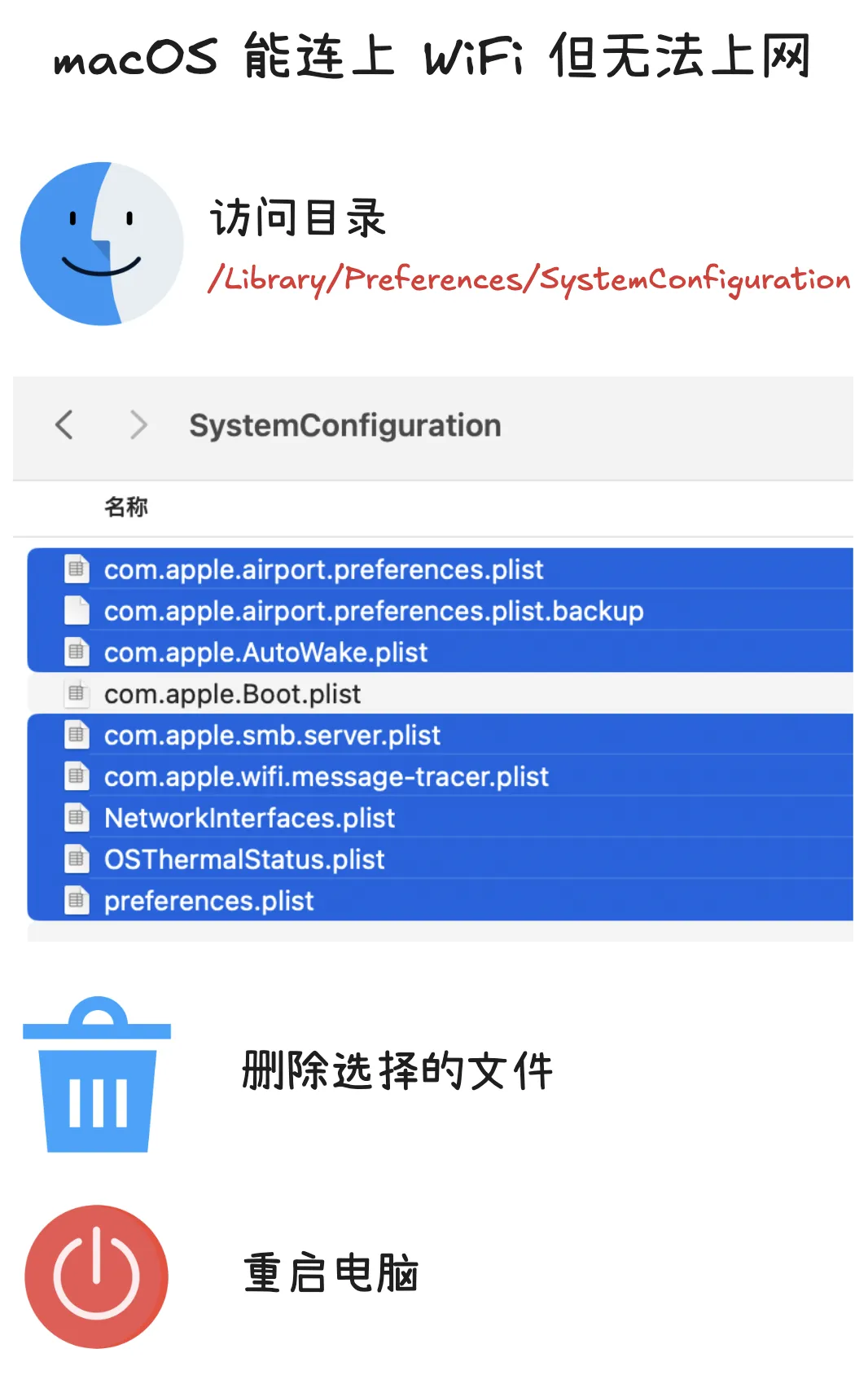
macOS 能连上 WiFi 但无法上网

问题描述

我的 MacBook Pro M2 Max 能够连接上 WiFi,但是无法上网,我进行了以下尝试:

  1. 路由器(没有问题);
  2. 重启电脑;
  3. 断开 WiFi 重新连接;

解决方案

最后,我在抖音上看到了一个解决方案,我尝试了一下,果然解决了问题。

打开访达,按下Command + Shift + G,输入/Library/Preferences/SystemConfiguration/,除com.apple.Boot.plist文件外,删除其他所有文件,然后重启电脑。

OpenWrt

DIY自己的软路由系统

LEDE

我买了一个使用 Intel 赛扬处理器的路由器。主要是为了搭梯子,2020年的时候网上编译好的系统不支持 TROJAN 协议,所以我自己使用 LEDE 编译。他的 SSR Plus+ 组件支持 SS/SSR/V2RAY/TROJAN 等协议.

  • Images built after May 31 2020 are based on Ubuntu 18.04.
  • x86 This image has 26G, and the dependent software packages and compiled binaries are in it. It can be used directly for x86, or it can be recompiled through simple configuration.
  • x86-bin This image contains only x86 binaries generated by compilation.

Compile your own LEDE system. Compile: docker run -it --name=lede gouchicao/lede:x86 git pull ./scripts/feeds update -a && .

阿里云服务器 ECS 开放端口

开放端口设置

配置路径

配置规则

授权策略 优先级 协议类型 端口范围 授权对象 描述
允许 1 自定义 TCP 目的:5000/5000 源:0.0.0.0/0 Flask
允许 1 自定义 TCP 目的:8000/8000 源:0.0.0.0/0 FastAPI

问题

今天通过上面的配置后,发现不能访问,上网搜索了半天,看到有说需要配置 iptables ,于是开始了一顿搜索和学习(Linux上iptables基础应用),进行了如下配置,发现还是访问不了。

iptables -A INPUT -p tcp --dport 5000 -j ACCEPT
iptables -A INPUT -p tcp --dport 8000 -j ACCEPT

解决

突然想到了 Web 应用服务器的配置 --host,我这里用的是 uvicorn,默认使用的 127.0.0.1,这样只能接收本机的访问,需要接收其它主机的访问就需要配置为 0.0.0.0。

Web 应用服务器的配置

  • uvicorn --host 0.0.0.0
  • gunicorn --bind 0.0.0.0

最后测试了一下,发现根本不需要使用 iptables 配置。

参考资料

命令 nc

捕获 HTTP 请求的内容

  1. 监听端口,用于捕获数据。
nc -l port 
  1. 发送 HTTP 请求。
curl http://ip:port/

GET 请求

curl http://127.0.0.1:8000/
GET /?name=wjj HTTP/1.1
Host: 127.0.0.1:8000
User-Agent: curl/7.61.1
Accept: */*

POST JSON 请求

curl --location --request POST 'http://127.0.0.1:8000/users_by_json' \
--header 'Content-Type: application/json' \
--data-raw '{
    "name": "wjj",
    "age": 40
}'
POST /users_by_json HTTP/1.1
Host: 127.0.0.1:8000
User-Agent: curl/7.61.1
Accept: */*
Content-Type: application/json
Content-Length: 36

{
    "name": "wjj",
    "age": 40
}

Docker 网络

ifconfig & route

$ docker run -d --name centos1 centos
$ docker run -it --name centos2 centos bash
# yum install net-tools -y

# ifconfig
eth0: flags=4163<UP,BROADCAST,RUNNING,MULTICAST>  mtu 1500
        inet 172.17.0.3  netmask 255.255.0.0  broadcast 172.17.255.255
        ether 02:42:ac:11:00:03  txqueuelen 0  (Ethernet)
        RX packets 3475  bytes 14166022 (13.5 MiB)
        RX errors 0  dropped 0  overruns 0  frame 0
        TX packets 2988  bytes 214839 (209.8 KiB)
        TX errors 0  dropped 0 overruns 0  carrier 0  collisions 0

lo: flags=73<UP,LOOPBACK,RUNNING>  mtu 65536
        inet 127.0.0.1  netmask 255.0.0.0
        loop  txqueuelen 1000  (Local Loopback)
        RX packets 0  bytes 0 (0.0 B)
        RX errors 0  dropped 0  overruns 0  frame 0
        TX packets 0  bytes 0 (0.0 B)
        TX errors 0  dropped 0 overruns 0  carrier 0  collisions 0

# route
Kernel IP routing table
Destination     Gateway         Genmask         Flags Metric Ref    Use Iface
default         _gateway        0.0.0.0         UG    0      0        0 eth0
172.17.0.0      0.0.0.0         255.255.0.0     U     0      0        0 eth0

iptables

规则

添加规则

iptables -t raw -A OUTPUT -p icmp -j TRACE
iptables -t raw -A PREROUTING -p icmp -j TRACE

查看规则

# iptables -t raw -L -n --line-numbers 
Chain PREROUTING (policy ACCEPT)
num  target     prot opt source               destination         
1    TRACE      icmp --  0.0.0.0/0            0.0.0.0/0           

Chain OUTPUT (policy ACCEPT)
num  target     prot opt source               destination         
1    TRACE      icmp --  0.0.0.0/0            0.0.0.0/0           

删除规则

iptables -t raw -D PREROUTING 1
iptables -t raw -D OUTPUT 1

参考资料

在Kubernetes上安装Ingress

官方的安装

helm repo add ingress-nginx https://kubernetes.github.io/ingress-nginx
helm repo update

helm install ingress-nginx ingress-nginx/ingress-nginx

在中国

  1. 下载 [Ingress Release][ingress-nginx-releases]
wget https://github.com/kubernetes/ingress-nginx/releases/download/ingress-nginx-3.3.0/ingress-nginx-3.3.0.tgz
  1. 解压
tar xzvf ingress-nginx-3.3.0.tgz
cd ingress-nginx

替换镜像 vim values.yaml repository: k8s.gcr.

Kubernetes中的Service

Service

为一组功能相同的 Pod 提供固定地址的访问。

集群内部的服务

在集群内部运行多个 Pod 服务。

创建服务

先部署之前的 kubia Deployment (kubia.yaml)

apiVersion: apps/v1
kind: Deployment
metadata:
  name: kubia
  labels:
    app: kubia
spec:
  selector:
    matchLabels:
      app: kubia
  replicas: 2
  template:
    metadata:
      labels:
        app: kubia
    spec:
      containers:
      - name: kubia
        image: wangjunjian/kubia:latest
        ports:
        - containerPort: 8080

创建 Deployment 对象

$ kubectl apply -f kubia.yaml 
deployment.apps/kubia created
  • 使用 YAML 文件
apiVersion: v1
kind: Service
metadata:
  name: kubia
  labels:
    app: kubia
spec:
  ports:
  - port: 80
    targetPort: 8080
  selector:
    app: kubia

创建 Service 对象 $ kubectl

命令wget

下载多个文件

  • 空格分割
wget https://upload.wikimedia.org/wikipedia/commons/1/13/Intel_CPU_Core_i7_6700K_Skylake_perspective.jpg https://images-na.ssl-images-amazon.com/images/I/51iVSqLIBWL._AC_.jpg
  • 来自文件(-i)
wget -i urls.txt

后台下载(-b)

wget -i urls.txt -b

指定输出目录

wget -i urls.txt -P output

断点续传(-c --continue)

wget -c https://github.com/goharbor/harbor/releases/download/v2.1.3/harbor-offline-installer-v2.1.3.tgz

GitHub加速

通过网游加速器

在路径上增加 .cnpmjs.org

正常下载:git clone https://github.com/microsoft/onnxruntime.git

加速下载:git clone https://github.com.cnpmjs.org/microsoft/onnxruntime.git

查找当前位置距离最快的 GitHub IP

运行测速脚本 gh-check

curl -fsSL  https://gist.githubusercontent.com/lilydjwg/93d33ed04547e1b9f7a86b64ef2ed058/raw/134c1971ad95930aaec4cf93c8509f0f4927c03c/gh-check \
    | python3 -

文件 hosts 路径

  • Windows
C:\Windows\System32\drivers\etc\hosts
  • Mac OS X
/etc/hosts
  • Linux
/etc/hosts

修改 hosts 文件

199.232.69.194 github.global.ssl.fastly.net
140.82.112.4 github.com

下载

git clone https://github.com/microsoft/onnxruntime.git

配置pip镜像源

加速 pip 下载安装包的速度。下面使用的是来自于阿里云的镜像源:https://mirrors.aliyun.com/pypi/simple/

国内可用的pip镜像源

https://mirrors.aliyun.com/pypi/simple/
https://pypi.tuna.tsinghua.edu.cn/simple/
http://pypi.douban.com/simple/
https://pypi.mirrors.ustc.edu.cn/simple/
http://pypi.hustunique.com/
http://pypi.sdutlinux.org/

更新pip

# pip install --upgrade pip
Looking in indexes: https://mirrors.aliyun.com/pypi/simple/
Requirement already up-to-date: pip in /usr/local/lib/python3.6/site-packages (20.2.4)

临时使用pip镜像

# pip install -i https://mirrors.aliyun.com/pypi/simple/ package

列出加载配置的路径和配置信息 # pip confi

配置Kubernetes镜像源

配置 Kubernetes 镜像源

apt-get update && apt-get install -y apt-transport-https
curl https://mirrors.aliyun.com/kubernetes/apt/doc/apt-key.gpg | apt-key add - 
cat <<EOF >/etc/apt/sources.list.d/kubernetes.list
deb https://mirrors.aliyun.com/kubernetes/apt/ kubernetes-xenial main
EOF
apt-get update

参考资料

配置Docker镜像源

加速 Docker Hub 镜像拉取速度。

这里以阿里云镜像源:https://75oltije.mirror.aliyuncs.com 为例进行配置。

$ sudo nano /etc/docker/daemon.json
{
  "registry-mirrors": ["https://75oltije.mirror.aliyuncs.com"]
}
## 另一种方法()
cat << EOF >/etc/docker/daemon.json
{
  "registry-mirrors": ["https://75oltije.mirror.aliyuncs.com"]
}
EOF

重启 Docker daemon 服务

$ sudo systemctl restart docker

参考资料

在Ubuntu上配置apt镜像源

在国内使用官方的镜像源安装 Ubuntu 应用非常慢,通常配置国内的镜像源来加快速度,如阿里云。

这里以[阿里云镜像源]为例,替换掉官方源。

使用 http://mirrors.aliyun.com/ubuntu/ 替换 http://cn.archive.ubuntu.com/ubuntu/,需要查看一下文件 /etc/apt/sources.list,要替换的可能是 http://archive.ubuntu.com/ubuntu/

替换配置

sed -i 's/cn.archive.ubuntu.com/mirrors.aliyun.com/g' /etc/apt/sources.list
sed -i 's/archive.ubuntu.com/mirrors.aliyun.com/g' /etc/apt/sources.list

基于配置的镜像源更新安装包的列表

apt-get update

国内主要的 Ubuntu 镜像源

  • 阿里云 http://mirrors.aliyun.com/ubuntu/
  • 网易 http://mirrors.163.com/ubuntu/
  • 清华大学 https://mirrors.tuna.tsinghua.edu.cn/ubuntu/
  • 中科大 https://mirrors.ustc.edu.cn/ubuntu/

Linux系统DNS设置

之前在文件/etc/resolv.conf中设置了,过段时间总是自动恢复默认值。(注释中写的很详细,是不可编辑的由系统自动生成的文件)

/etc/resolv.conf # This file is managed by man:systemd-resolved(8). Do not edit. # # This is a dynamic resolv.conf file for connecting local clients to the # internal DNS stub resolver of systemd-resolved. This file lists all # configured search domains. # # Run "resolvectl status" to see details about the uplink DNS servers # currently in use. # # Third party programs must not access this file directly, but only through the # symlink at /etc/resolv.conf. To manage man:resolv.

基于Apt-Cacher NG创建本地Ubuntu存储库

安装 Apt-Cacher-NG

$ sudo apt install apt-cacher-ng
$ sudo systemctl enable apt-cacher-ng
$ sudo service apt-cacher-ng start

配置

$ sudo nano /etc/apt-cacher-ng/acng.conf
  • CacheDir: /var/cache/apt-cacher-ng
  • LogDir: /var/log/apt-cacher-ng

查看缓存目录的数据

$ du -sh /var/cache/apt-cacher-ng/
19M	/var/cache/apt-cacher-ng/

客户端配置

$ sudo nano /etc/apt/apt.conf.d/00aptproxy
Acquire::http::Proxy "http://172.16.33.157:3142";

安装软件

$ sudo apt install nodejs

参考资料 使用apt-cacher-ng的快速Debian/Ubuntu軟件包緩存代理設置 使用“ apt-cacher”设置“ apt-cache”服务器 使用 apt-mir

NFS配置

Ubuntu

服务端

  • 安装服务端
sudo apt install nfs-kernel-server
  • 查看服务状态
sudo systemctl status nfs-server
  • 查看开启的NFS协议
sudo cat /proc/fs/nfsd/versions
-2 +3 +4 +4.1 +4.2
  • 配置访问的路径
sudo nano /etc/exports
/data/nfs        172.16.33.0/24(rw,sync,fsid=0,crossmnt,no_subtree_check)
  • 应用配置
sudo exportfs -ra
  • 查看当前应用
sudo exportfs -v
  • 重启服务
sudo systemctl restart nfs-server

客户端

  • 安装客户端
sudo apt install nfs-common
  • 查看NFS服务器导出列表
showmount -e 172.16.33.157
Export list for 172.16.33.157:
/data/nfs 172.16.33.0/24,172.16.128.164
  • 挂载NFS
sudo mount -t nfs 172.16.33.157:/ $(pwd)/nfs
  • 移除挂载
sudo umount $(pwd)/nfs

参考资料 如何在Ubuntu 18.04上安装和配置NFS服务器 ubuntu18.