13 篇文章带有标签 “performance”

PyTorch 神经网络实战:从训练到推理的完整指南

该文本提供了一个关于PyTorch二分类神经网络的实现与性能分析的全面概述。首先,它通过具体代码示例展示了如何构建、训练、评估和保存一个基础的神经网络模型,并演示了如何加载模型进行推理。其次,文章深入探讨了不同模型参数规模下Apple的MPS(Metal Performance Shaders)框架与CPU训练时间上的性能对比,通过表格数据清晰地呈现了MPS在处理大型模型时相较于CPU的显著优势,并指出了性能的“转折点”

我的电脑是 Apple MacBook Pro M2 Max 16寸 64G内存

PyTorch 二分类神经网络实现与训练示例 import torch import torch.nn.functional as F from torch.utils.data import Dataset from torch.utils.data import DataLoader # 模型网络 class NeuralNetwork(torch.nn.Module): def init(self, num_inputs, num_outputs): super().init() self.layers = torch.nn.Sequential( torch.nn.Linear(num_inputs, 30), torch.nn.ReLU(), torch.
OpenVINO Deep Learning Workbench

使用 Docker 运行 DL Workbench

拉取镜像

docker pull openvino/workbench:2022.1

运行

docker run -p 0.0.0.0:5665:5665 --name workbench -it openvino/workbench:2022.1

浏览器访问

http://127.0.0.1:5665/

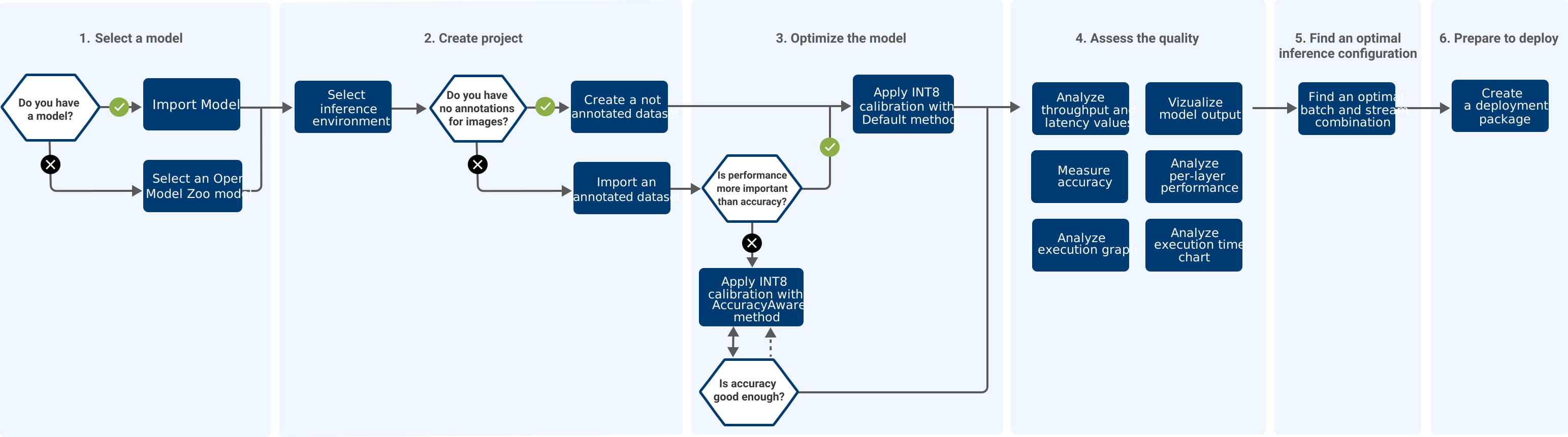
DL Workbench 工作流程

快速了解 DL Workbench 用户界面中的工作流程

参考资料

TVM

模型在使用 TVM 优化编译器框架进行转换时的步骤

from tvm.driver import tvmc
model = tvmc.load('resnet50-v2-7.onnx')
package = tvmc.compile(model, target="llvm")


from tvm.driver import tvmc
model = tvmc.load('sign.onnx') #Step 1: Load
package = tvmc.compile(model, target="llvm") #Step 2: Compile
result = tvmc.run(package, device="cpu") #Step 3: Run
print("Time :", timeit.default_timer() - starttime)


import onnx
import tvm
from tvm import relay
// ...

参考资料 The Deep Learning Compiler: A Comprehensive Survey 深度学习编译器整理 一篇关于深度学习编译器架构的综述论文 Getting Starting using TVMC P

在 PyTorch 中融合卷积和批量标准化

融合卷积和批量标准化的原理

PyTorch 的实现 def fuse_conv_bn_eval(conv, bn, transpose=False): assert(not (conv.training or bn.training)), "Fusion only for eval!" fused_conv = copy.deepcopy(conv) fused_conv.weight, fused_conv.bias = \ fuse_conv_bn_weights(fused_conv.weight, fused_conv.bias, bn.running_mean, bn.running_var, bn.eps, bn.weight, bn.bias, transpose) return fused_conv def fuse_conv_bn_weights(conv_w, conv_b, bn_rm, bn_rv, bn_eps, bn_w, bn_b, transpose=False): if conv_b is None: conv_b = torch.zeros_like(bn_rm) if bn_w is None: bn_w = torch.

OpenVINO Benchmark Python Tool

性能指标评测工具

该工具使用卷积网络执行推理。性能可以测量两种推理模式:

  • 同步(面向延迟 Latency)
  • 异步(面向吞吐量 Throughput)

帮助信息 -i PATHS_TO_INPUT [PATHS_TO_INPUT ...], --paths_to_input PATHS_TO_INPUT [PATHS_TO_INPUT ...] Optional. Path to a folder with images and/or binaries or to specific image or binary file.It is also allowed to map files to network inputs: input_1:file_1/dir1,file_2/dir2,input_4:file_4/dir4 input_2:file_3/dir3 -m PATH_TO_MODEL, --path_to_model PATH_TO_MODEL Required. Path to an .xml/.onnx file with a trained model or to a .blob file with a trained compiled model. -d TARGET_DEVICE, --target_device TARGET_DEVICE Optional.

OpenVINO Cross Check Tool

交叉检查工具 (Cross Check Tool)

可以比较两个连续模型推理的准确性和性能指标,这些推理在两个不同的受支持的英特尔设备上执行或以不同的精度执行。交叉检查工具可以比较每层或整个模型的指标。

查看帮助信息 $ python cross_check_tool.py -h usage: -------------------------------------------------------------- For cross precision check provide two IRs (mapping files may be needed) run: python3 cross_check_tool.py \ --input path/to/file/describing/input \ --model path/to/model/.xml \ --device device_for_model \ --reference_model path/to/reference_model/.

OpenVINO 神经网络性能分析

网络性能分析

查看每层的性能测量值,可以获得最耗时的层。

实现方式

通过配置收集指定设备上的性能分析

core = Core()
core.set_property(device_name, {"PERF_COUNT": "YES"})

通过推理请求获得性能分析数据

request = compiled_model.create_infer_request()
results = request.infer({0: input_tensor})
prof_info = request.get_profiling_info()

可视化性能分析 def print_infer_request_profiling_info(prof_info): column_max_widths = { 'node_name': 0, 'node_type': 0, 'exec_type': 0 } for node in prof_info: if len(node.node_name) > column_max_widths['node_name'] : column_max_widths['node_name'] = len(node.

使用 wrk 对 FastAPI 上传和下载文件的基准测试

服务器 CPU 40核,内存 256G,操作系统 Ubuntu 20.04,Python3.9

RESTAPI 基于 FastAPI 实现的文件上传和下载 router = APIRouter(prefix='/file_benchmarking', tags=['Files']) @router.post('/upload/binary/chunk/async_func/async_r_sync_w', tags=['Upload', 'binary']) async def upload_binary_chunk_async_func_async_r_sync_w(request: Request): file_path = get_random_filename() with open(file_path, "wb") as file: async for chunk in request.stream(): file.write(chunk) return {'file_path': file_path} @router.

Linux 性能优化

CPU

概念

平均负载

单位时间内,系统处于可运行状态和不可中断状态的平均进程数,也就是平均活跃进程数,它和 CPU 使用率并没有直接关系。

当平均负载高于 CPU 数量 70% 的时候,你就应该分析排查负载高的问题了。一旦负载过高,就可能导致进程响应变慢,进而影响服务的正常功能。 70% 这个数字并不是绝对的,最推荐的方法,还是把系统的平均负载监控起来,然后根据更多的历史数据,判断负载的变化趋势。当发现负载有明显升高趋势时,比如说负载翻倍了,你再去做分析和调查。

工具

查看 cpu核数

nproc
lscpu
grep 'model name' /proc/cpuinfo | wc -l

显示平均负载 uptime

uptime、top,显示的顺序是最近1分钟、5分钟、15分钟,从此可以看出平均负载的趋势

$ uptime
 12:51:13 up 754 days,  2:02,  3 users,  load average: 0.41, 0.65, 2.63

持续自动运行命令 watch

watch -d uptime: -d会高亮显示变化的区域

系统压力测试工具 stress

安装

yum install stress -y

strees: --cpu cpu压测选项,-i io压测选项,-c 进程数压测选项,--timeout 执行时间

FastAPI 上传和下载文件的基准测试

使用 FastAPI 实现了文件的上传和下载,部署服务使用了 uvicorn 和 gunicorn+uvicorn 两种方法。

基准测试工具使用的是 wrk

服务器 CPU 40核,内存 256G,操作系统 Ubuntu 20.04,Python3.9

测试流程

使用的测试图片 health.jpg (256kb)

生成测试数据

生成通过 HTTP POST 发送二进制数据的文件。

python make_http_postdata.py make health.jpg postdata
file: /home/wjj/test/postdata
boundary: gouchicao0123456789

创建用于 wrk 的 lua 脚本:postfile.lua

wrk.method = "POST"
local f = io.open("postdata", "rb")
wrk.body   = f:read("*all")
wrk.headers["Content-Type"] = "multipart/form-data; boundary=gouchicao0123456789"

部署 FastAPI 应用 uvicorn uvicorn app.

基于健康码识别的 FastAPI 同步和异步函数的基准测试

健康码识别服务使用了 FastAPI 进行开发的,本周主要工作是为了对健康码识别的服务进行性能调优。接口函数使用了 async 关键字,但是内部的实现并没有使用 await。由于改写成异步代码需要时间,这里并没有改写代码,只是删除了 async 关键字。部署服务使用了 uvicorn 和 gunicorn+uvicorn 两种方法。

基准测试工具使用的是 ab

测试流程

生成测试数据

准备测试图片 health.jpg

echo -n '{"base64": "' > health.json
base64 -w0 health.jpg >> health.json
echo -n '"}' >> health.json

部署服务

uvicorn

docker run --runtime=nvidia --rm -it -e NVIDIA_VISIBLE_DEVICES=2 -p 20001:8000 \
    -v $(pwd):/health_code_service --name=health-uvicorn  health-code-service \
    uvicorn controller:app --host 0.0.0.0 --workers 1
  • workers 并发进程数

命令cp

拷贝一批文本文件(10000)到目录

cp

  • time: 0.470s
  • 当文件更新了或者缺少时才拷贝。(-u)
  • 速度最快
cp -u labels/*/*.txt datasets/yolo/sign/labels/

xargs

  • time: 30.003s
ls labels/*/*.txt | xargs -I {} cp {} datasets/yolo/sign/labels/

find -exec

  • time: 32.521s
find labels/ -type f -iname '*.txt' -exec cp {} datasets/yolo/sign/labels/ \;

for

  • time: 41.259s
for i in `ls labels/*/*.txt`; do cp $i datasets/yolo/sign/labels/; done

参考资料

命令top

快捷键

  • Shift+p 按CPU使用率排序
  • Shift+m 按内存使用率排序
  • 1 显示每个逻辑CPU的状态

查看指定进程

top -p $pid
  • 查看1号进行
top -p 1
top -p1
top - 22:58:02 up 323 days, 12:09,  2 users,  load average: 0.64, 0.61, 0.38
Tasks:   1 total,   0 running,   1 sleeping,   0 stopped,   0 zombie
%Cpu(s):  7.2 us,  1.8 sy,  0.0 ni, 90.3 id,  0.0 wa,  0.5 hi,  0.2 si,  0.0 st
MiB Mem :   3780.8 total,    400.2 free,   1749.6 used,   1631.0 buff/cache
MiB Swap:      0.0 total,      0.0 free,      0.0 used.   1939.3 avail Mem 

  PID USER      PR  NI    VIRT    RES    SHR S  %CPU  %MEM     TIME+ COMMAND
    1 root      20   0  178540   7680   3792 S   0.0   0.2   7:50.54 systemd